June 24, 2026
How messaging works in ProductionPlanner.io
Direct messages and a group conversation built into each project, with file attachments from your resources, read tracking, and unread badges. A closer look at the messaging feature.
By John Barker
A production runs on a steady stream of small messages. “Can you confirm the run time on the keynote?” “What’s the parking situation tomorrow?” “Did the venue ever send the floor plan?” Most of these are tiny exchanges, but they pile up across email threads, group chats, and the back of someone’s phone, and the production’s working context ends up split across half a dozen apps.
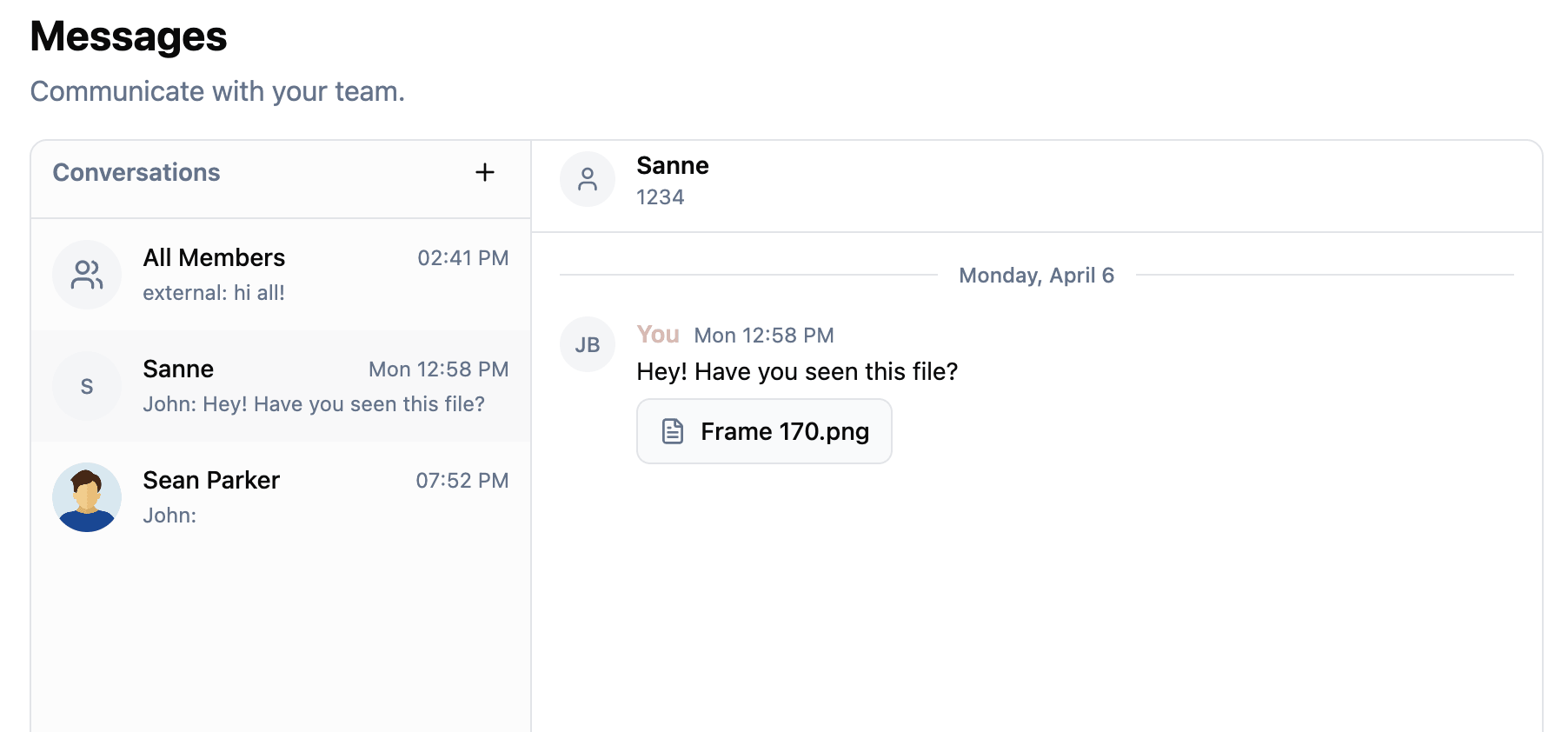
Messaging in ProductionPlanner.io puts those conversations inside the project. Direct messages to one person, a group conversation for everyone, file attachments from your project’s resources, and unread badges so you know where to look first.
Two conversation types
There are two kinds of conversations inside a project:
- Direct messages are private between you and one other team member. Only the two participants see the thread. Useful for one-off questions, sensitive coordination, or any back-channel that does not belong in front of the whole team.
- All Members is the group conversation, visible to every team member on the project. Every project has one by default. Use it for broadcasts that everyone needs to see: “doors push to 7:15,” “vendor parking is now on the south side.”
You can start a direct message with any team member from the conversation list. The group conversation is always there.
Attach a file straight from your resources
A lot of production chat is “here is the file” chat. The new floor plan. The updated cue sheet. The vendor contact list. In most tools you attach by uploading the file again, which means every conversation ends up with its own private copy of every shared file and the canonical version drifts.
In ProductionPlanner.io, message attachments are pulled from the project’s resources. Pick a file or link from your project, attach it to the message, and recipients click through to the live version that lives on the project. When the file is updated, the message attachment points at the updated version. No more “is this the latest?” between three different copies.
This also keeps the project’s files in one place. The schedule item that needs the cue sheet, the message that links to the cue sheet, and the resources page that owns the cue sheet are all pointing at the same file.
Read tracking and unread badges
You should not have to scroll through every conversation to find the one with a new message in it. Each conversation tracks which messages you have read, so the sidebar shows an unread badge next to Messages when there is something new for you.

Open the page and the conversations with unread messages stand out, with the count visible on each one. Read what is new, leave the rest, move on.
Messages grouped by date, attributed to a person
Messages display chronologically and group together by date. “Today” and “Yesterday” appear as labels for recent conversations; older messages show the full date. Each message carries the author’s name, avatar (initials if there is no profile image), role, and send time, so you always know who said what without scrolling back for context.
The conversation list itself shows you what each one is. Group conversations show the member count. Direct messages show the other member’s name and role. The page reads like a working inbox for the production.
Why this lives inside the project, not in a separate app
Production messaging in a separate app means a separate set of credentials, a separate notification stream, and a separate place where context lives. When the conversation is about the project, the project is where it should live.
A reference to a schedule item is a click away. A linked resource is a click away. The team member you are DMing is the same team member who appears on the schedule, who has tasks assigned to them, and whose role you can see on the team page.
The conversation is part of the project, not floating next to it.
How it fits with the rest of ProductionPlanner.io
Messaging is woven into the rest of the project:
- Conversations are scoped to the project team. You can DM anyone on the project; the group is everyone on the project.
- Attachments come from your project resources, so links always point at the live version of the file.
- The unread badge sits in the project sidebar, next to the rest of the project’s navigation.
Try it with your next production
Messaging is available in every project on any plan. Open a project, head to the Messages page, and start a DM or post in the group conversation. Attach a file from your resources and watch it show up as a live link rather than a copy.
If you are running a production and your team’s chat is fragmented across half a dozen apps, create your account and try keeping the conversation inside the project.
Read the full messaging documentation for a detailed walkthrough.
Stay in the loop
Get product updates when new features ship. No spam, unsubscribe anytime.