July 29, 2026
How the project home page works in ProductionPlanner.io
Custom themes and branding, multi-date scheduling, timezone support, and a full activity log of every change. A closer look at what makes a project a project.
By John Barker
Most of the feature spotlights so far have been about the working parts of a production: the schedule, the budget, the tasks, the resources, the team. This post is about the spine that holds them together. The project itself.
A project in ProductionPlanner.io is the central workspace where every other feature lives. It carries the branding, the dates, the timezone, the team, and a full log of everything that has ever changed on it. The bits that are easy to overlook because they are not “features” you click into, but are the bits that make the project recognizable as itself.
Custom theming so the project looks like the production
Every project supports branding. Three knobs to turn:
- A brand color applied as an accent throughout the project. Buttons, badges, the project banner. Pick one that matches the production’s identity and it shows up consistently across the workspace.
- A banner image displayed at the top of the project. Useful for venue photos, show artwork, or a stylized title card. Drops the project into “looks like the show” territory rather than “looks like generic project software.”
- An icon chosen from ten options: film, camera, music, mic, TV, megaphone, calendar, star, rocket, and sparkles. The icon shows up everywhere the project is referenced, from the projects list to the sidebar of the project itself.
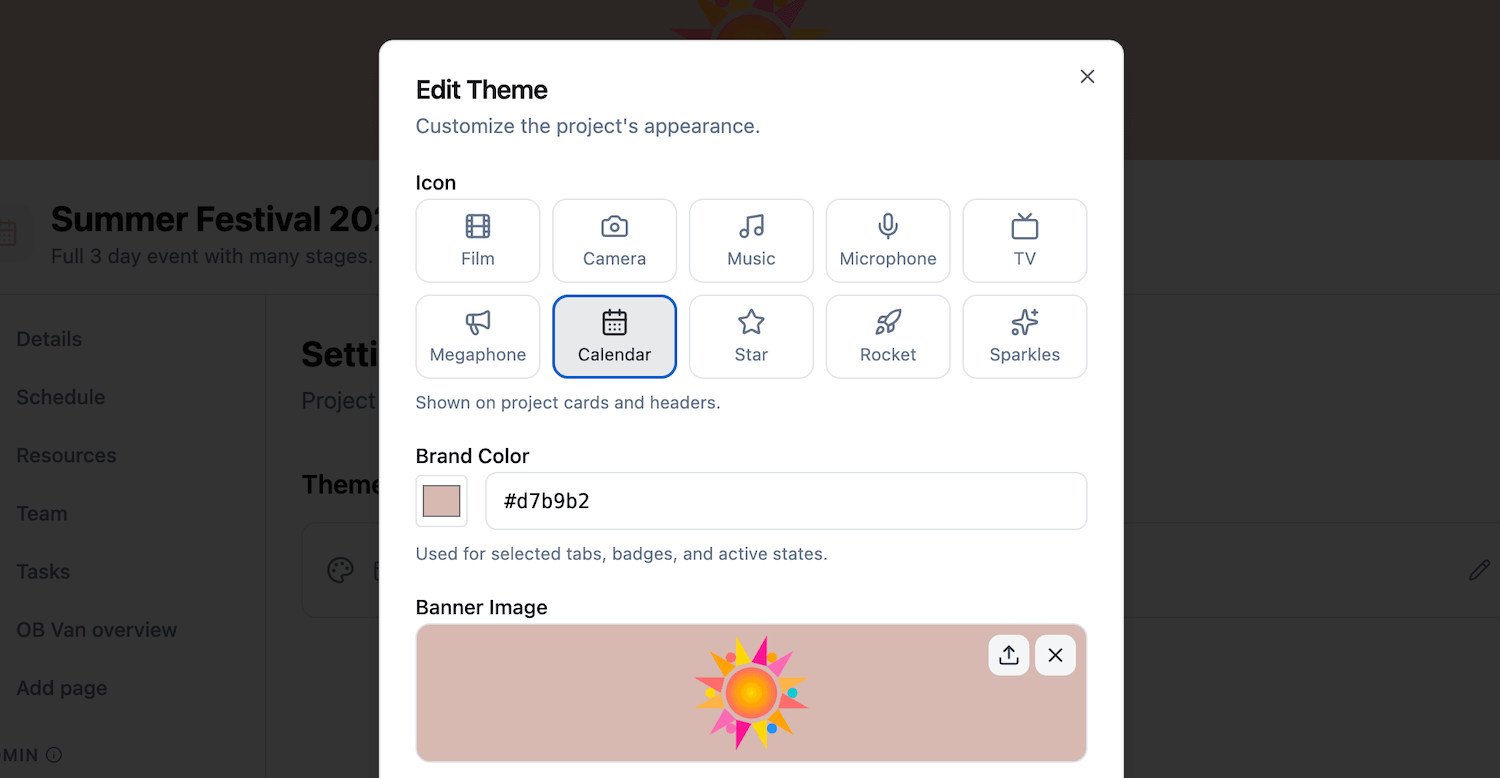
This is not just decoration. When you are running several projects in parallel, distinct branding is the fastest way to know which one you are in. A glance at the banner and you know whether you are in the corporate keynote or the festival.
Multi-date scheduling, with labels
A production rarely happens on one day. Load-in is a day. Rehearsal is a day. Show day is a day. Strike is a day. Each of these can be its own date on the project, with its own label and timing.
For each date you can set:
- A label like “Build Day,” “Show Day,” or “Strike,” so the date is described by what it is rather than just by its calendar position.
- Whether it is all-day or has specific start and end times.
- The start and end times when it is not all-day.
Each date on the project gets its own schedule, so a four-day production has four independent run-of-shows, all under the same project.
Three project views
The projects list itself supports three view modes:
- Card view with icons, colors, and banner images.
- List view with detailed rows that show key information at a glance.
- Calendar view that lays out projects on a timeline based on their dates.
Pick the one that matches the way you think. Calendar view is especially useful for production companies running several projects at once. The timeline shows which weeks are stacked, which weeks have gaps, and where the next big push is.
Timezone support that actually works
Productions travel. A producer in London running a venue in Austin with a designer in Berlin needs everyone to see the same schedule, and “3 o’clock” needs to mean the same thing for all three.
Every project has a timezone. All times on the schedule, all date times on the project, and all timestamps on activity are interpreted in the project timezone. The details page shows the timezone with country, city, and UTC offset, so it is obvious what a time on the schedule actually means.
When a team member opens the project from a different timezone, a banner shows on the schedule so they know the times on screen are project-local, not their own.
This sounds small. In practice it is the difference between a working production tool and a tool that quietly causes someone to miss a soundcheck.
Project links
Add important links directly to your project details page. Each link has a label, URL, and icon. Available icons cover globe, ticket, music, video, image, file, phone, mail, map pin, and generic link.
This is the place for external links that the team should be able to reach in one click from the project. The ticketing system. The streaming dashboard. The vendor portal. The artist’s rider. Whatever lives outside the application but is part of the production’s working set.
A full activity log
Every project has a built-in activity log that records changes made by team members. Open it from the project settings page to see a timestamped timeline of everything that has happened on the project.
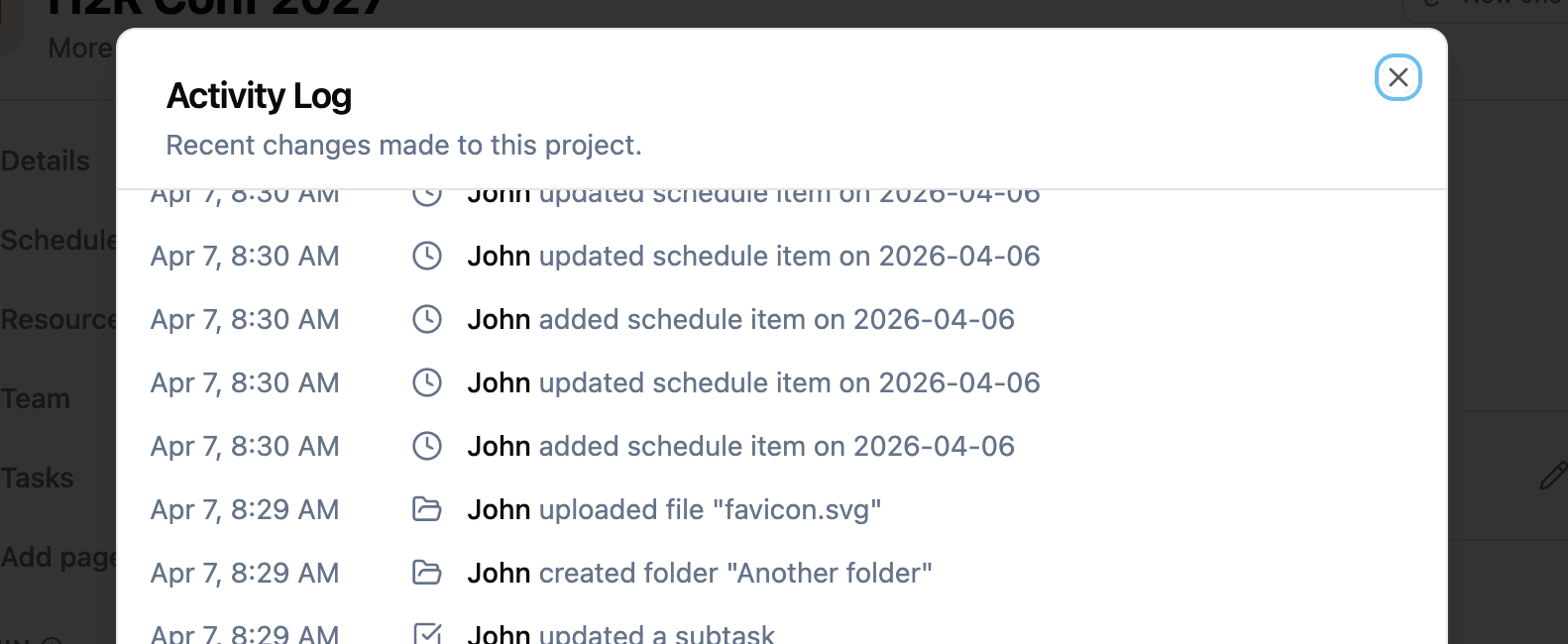
The log captures changes across every major area:
- Team changes: members added, updated, or removed; departments created or deleted.
- Resources changes: files uploaded, links added, folders created or renamed, file requests managed.
- Schedule changes: items added, updated, or removed.
- Tasks changes: tasks and subtasks created, completed, reopened, or deleted.
- Budget changes: items added, updated, or deleted.
- Locations changes: locations added, updated, or removed.
- Pages changes: custom pages created, updated, or deleted.
- Project details changes: name, description, dates, or theme changed.
Each entry shows the date, the team member, and a short description. The log loads the most recent entries first, with the option to load older entries as you scroll.
This is the answer to “who changed the load-in time?” and “when did the budget cap get raised?” and “who deleted that resource?” It is not a tool you use every day, but when you need it, it has the answer.
Collapsible sidebar
The project sidebar can be collapsed on desktop to give you more screen space. Useful when you are working on a wide schedule or a long document and want to give the content the full width.
Click “Hide sidebar” at the bottom of the sidebar to collapse it. The expand button floats in the top-left of the content area when the sidebar is hidden, so you can bring it back without losing space to a permanent toggle. Your preference is preserved as you navigate between pages.
How it all fits together
The project is the container. The schedule, budget, tasks, resources, team, messages, locations, custom pages, call sheets, and guest links all live inside it. The theming gives it identity. The dates and timezone give it temporal shape. The activity log gives it memory.
Build the project once. Everything else flows from there.
Try it with your next production
Create a project, give it a color and a banner, set the dates and the timezone, and invite the team. The rest of the application is built around what you set up on this single page.
If you are tired of every production looking like a generic project rather than the show it actually is, create your account and try giving your next one some identity.
Read the full projects documentation for a detailed walkthrough.
Stay in the loop
Get product updates when new features ship. No spam, unsubscribe anytime.