July 22, 2026
How project templates work in ProductionPlanner.io
Convert any project into a reusable template, then create new projects from it with one click. Schedule, budget, tasks, team structure, resources, locations, and pages are all copied, with dates shifted to your new start date. A closer look at the templates feature.
By John Barker
Most production companies do the same kind of show more than once. The corporate keynote that runs the same way every quarter. The touring band hitting twenty venues with the same load-in pattern. The conference where the structure stays the same and only the dates and the speaker list change.
Rebuilding the same schedule, team structure, and budget from scratch every time is the kind of work that should not exist. Project templates in ProductionPlanner.io let you save a project as a reusable starting point and spin up new ones from it in a few clicks.
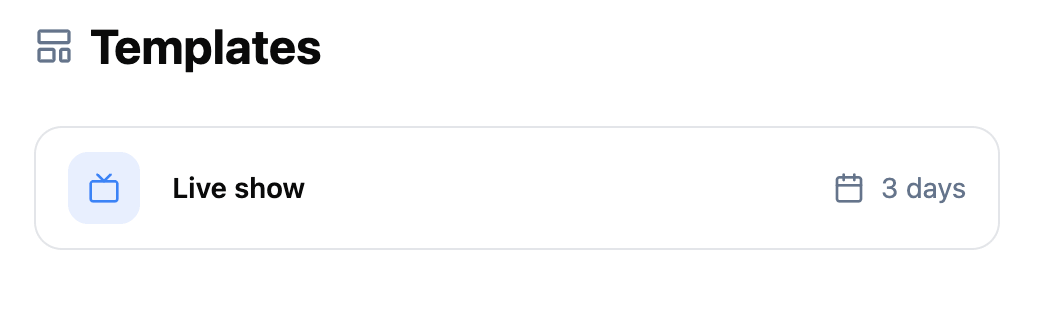
Turn any project into a template
You do not start by building a template. You start by building a project, running it, refining it, and then promoting the version you want to reuse.
Open any project, go to its Settings page, find the Project Template section, and convert. The project becomes a template. It disappears from the main projects list, gets a banner inside the project view marking it as a template, and shows up under a dedicated Templates page in the side menu.
This is intentional. Templates are not active productions. Keeping them out of the main list means your dashboard stays focused on real work, while the templates remain reachable from one place when you need them.
You can revert a template back to a regular project at any time from the same Settings page, so the conversion is not one-way.
Start a new project from a template
When you open the New Project dialog, any templates available in your organization appear as a “Start from template” option. Pick one and the new project begins with everything that defines how the production runs already in place.
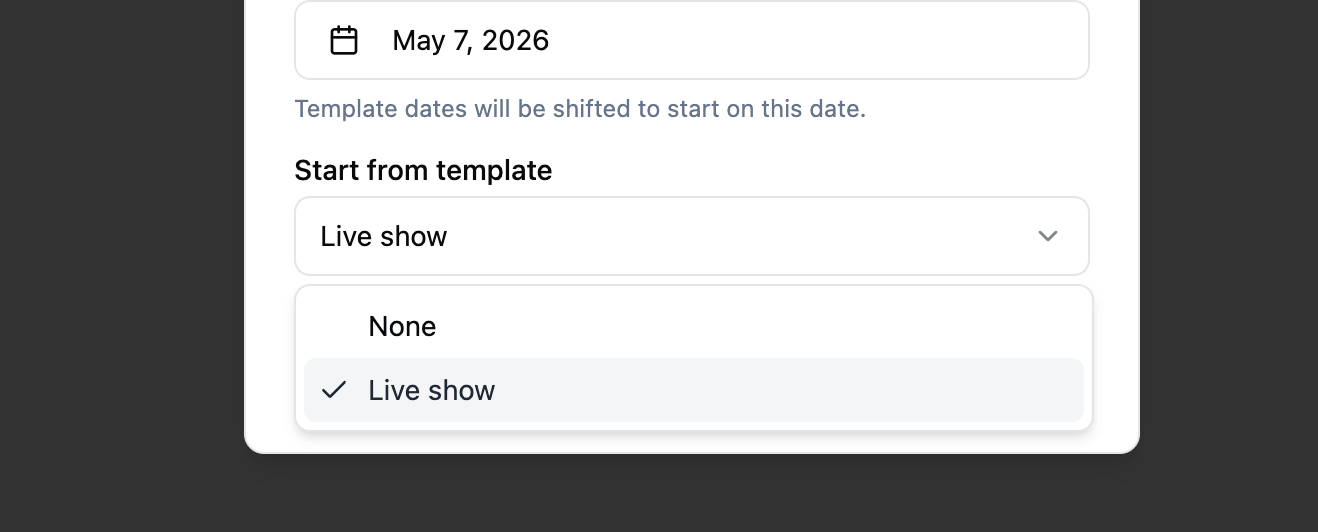
The thing that gets copied is the structure, not the history. Specifically:
- All project dates and the full schedule for each date.
- Budget items and the project budget cap.
- Tasks and subtasks.
- Team structure and departments.
- Resources, links, folders, and file requests.
- Locations.
- Custom pages, including note pages.
- Project theme and branding.
The structural content carries over so the new project opens already shaped like the production you are running. The conversations from the original do not carry over, since the discussions on the previous production belong with the previous production, not on a new one.
Dates shift to your new start date
The most useful trick is the date math.
When you create a new project from a template you pick a new start date, and every date on the template shifts relative to it. A three-day template that ran Monday-Wednesday becomes a three-day project starting on whatever date you pick, with every schedule item, project date, and task date moved by the same offset.
This is what makes templates actually reusable. You are not just copying the structure. The schedule that ran 7am load-in, 10am soundcheck, 7:30pm show on day one of the previous production lands on those same offsets relative to your new day one. No manual re-dating.
If you do not pick a start date, the template’s original dates are copied as-is, which is sometimes what you want for a planning template that does not have specific timing yet.
A working pattern: refine, promote, repeat
A useful way to use templates:
- Run a production normally. Build the schedule, set up the team, define the tasks, draft the budget.
- After the production ships, clean up the project. Remove anything that was specific to this run. Generalize the team roster to roles rather than specific people. Tidy the schedule into a reusable shape.
- Convert the cleaned-up project into a template.
- Next time you run the same kind of production, start from the template and adjust.
Templates get better with use. Each time you run one and learn something, you can update the template and the next project benefits.
Where templates live
Templates are scoped to your organization. Anyone in the organization can start a new project from any template the organization owns. This is how a production company can give every producer a starting point for the standard shows the company runs, without each producer rebuilding the schedule from memory.
Templates do not appear in the main projects list, so the dashboard stays focused on what is currently in production. They have their own page in the side menu where the full library lives.
How it fits with the rest of the project
Templates are full projects, just flagged as templates. Everything that works in a regular project works in a template:
- The full schedule is part of what gets copied, including custom item types and breakout sessions.
- The budget structure carries over, with the cap and category structure intact.
- Tasks and subtasks come across with their structure and completion permissions.
- The team structure copies the roster shape, the departments, and the permissions.
- Custom pages come along, so the embedded vendor sheet or the run-sheet note page is there in the new project.
Try it with your next recurring production
Templates are part of every project on any plan. Open a project you have already run, go to Settings, and convert it. Next time you start a similar production, pick it from the New Project dialog and let the dates shift to your new start.
If you find yourself rebuilding the same schedule, budget, and task structure every time you start a new project, create your account and try promoting your next run into a template.
Read the full templates documentation for a detailed walkthrough.
Stay in the loop
Get product updates when new features ship. No spam, unsubscribe anytime.