April 22, 2026
What's New in v1.3: Inline Schedule Editing, Team Assignments, and Account Preferences
Edit schedule items without opening a dialog, see who is assigned to each item at a glance, set your preferred time format and week start, and pick dates while creating a project.
By John Barker
Version 1.3 is all about speed on the schedule. Less clicking, fewer dialogs, and more context visible in the one place you spend most of your time. Here is what is new.
Edit schedule items in place
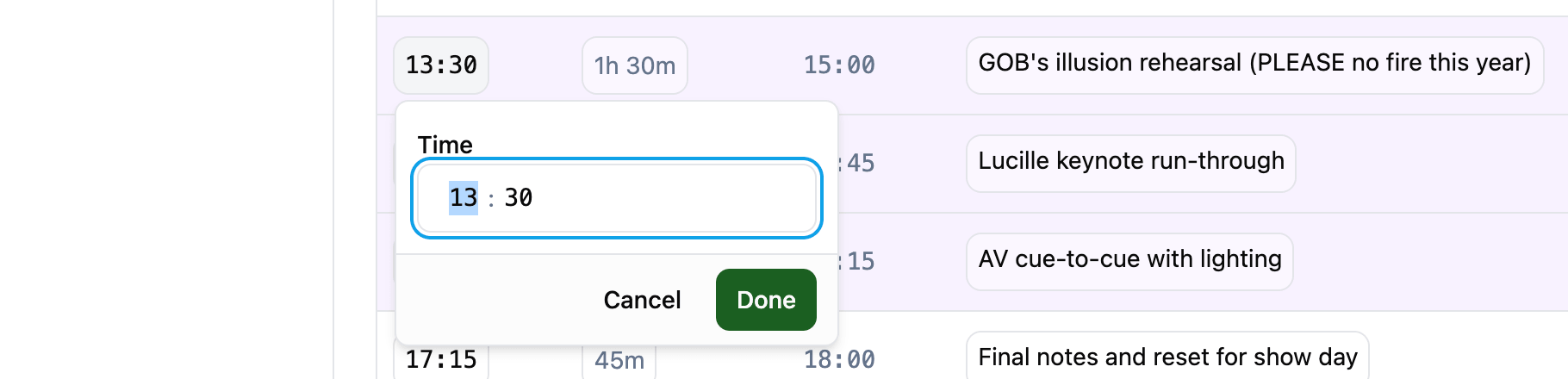
Building a schedule used to mean opening a dialog for every tweak. In v1.3 you can edit schedule items directly in the table. Click a time, a title, a type, or a duration, change it, and move on. It is the same schedule table you already know, just a lot faster to work with when you are iterating on a run of show.
Team members on the schedule
The schedule now shows who is assigned to each item in a dedicated column. Whether it is a two-person soundcheck or a full-crew load-in, you can see the assignments without opening the item. For anyone planning a show-day or handing the schedule to a production manager, having the team visible next to the timings makes it much easier to spot gaps and overlaps at a glance.

Account preferences
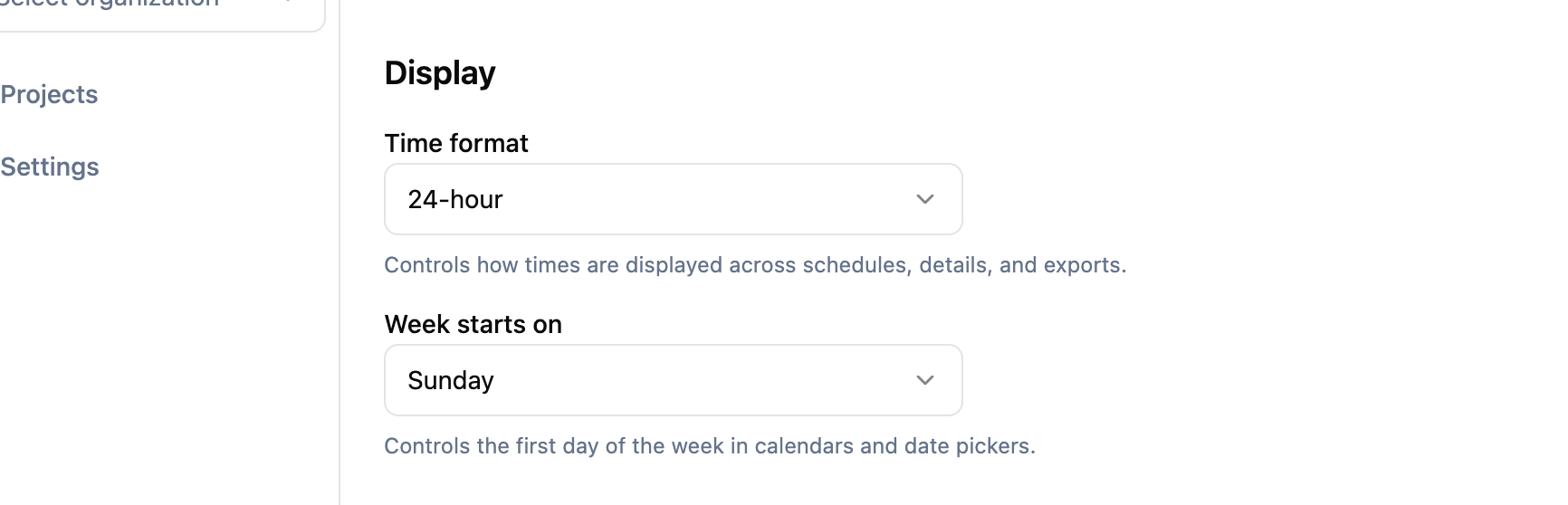
A new Account Settings page lets you choose your preferred time format and first day of the week. Previously the app inferred 12-hour or 24-hour time from your browser locale, which was usually right but not always what you wanted. Now you can pick explicitly, and the app will remember it across sessions and devices.
You can also set the first day of the week (Sunday or Monday) so calendars and date pickers line up with how you think about the week.
Pick dates when creating a project
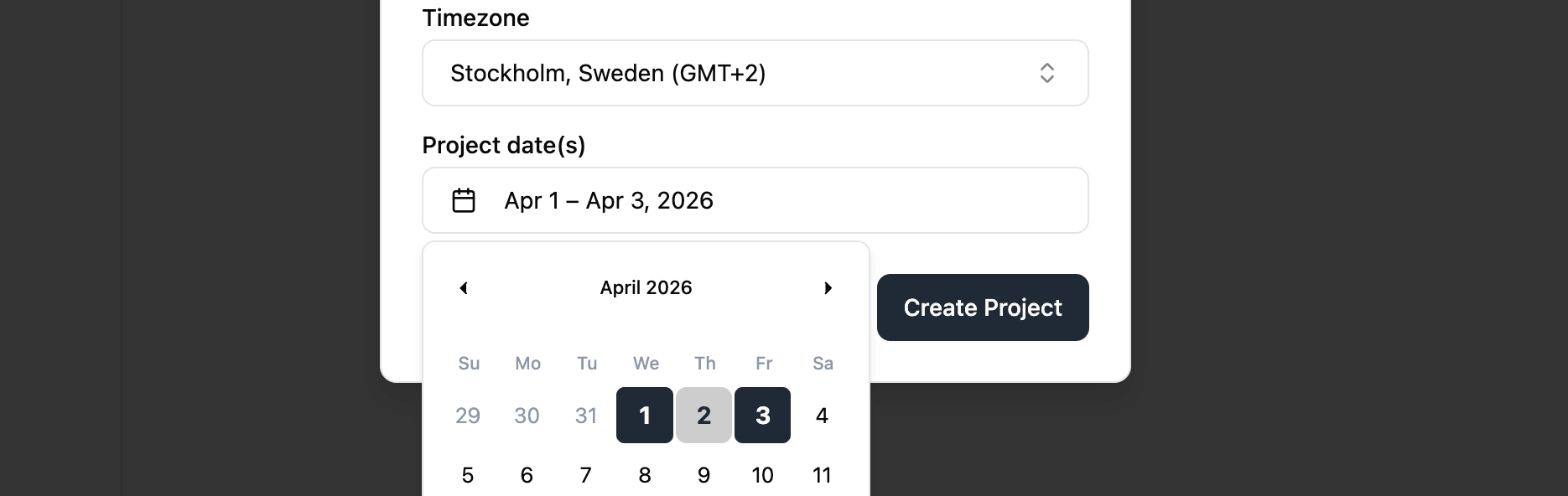
The Create Project dialog now lets you set the project’s start and end dates up front. No more creating the project and then jumping into settings to add the dates as a second step. Kick off a project and the timeline is ready to go.
Timezone on project details
Project info now shows the country, city, and UTC offset for the project’s timezone. When you are running a production across timezones, or handing a project off to someone in a different city, the extra context makes it obvious what “14:00” on the schedule actually means.
Fixes and small improvements
- Reworked the filetype picker when requesting a file from a user for a clearer selection experience.
- Removed ”.PDF” as an option for “Presentations” when requesting files.
- Various UI element tidy-ups across the app.
Stay in the loop
Get product updates when new features ship. No spam, unsubscribe anytime.