May 7, 2026
What's New in v1.4: Project Templates, CSV Import, and Rich-Text Note Pages
Turn any project into a reusable template, import your budget and schedule from a spreadsheet, add rich-text note pages to any project, and export the schedule as CSV.
By John Barker
Version 1.4 is about getting going faster. Reuse the structure of past productions instead of rebuilding from scratch, bring in budget and schedule data straight from a spreadsheet, and capture everything that does not fit in a task or message in a rich-text note page.
Project templates
If you run the same kind of show more than once, you have probably set up the same schedule, the same budget categories, the same task lists, and the same team structure over and over. In v1.4 you can convert any project into a template and create new projects from it with one click.
Templates copy everything that defines how the production runs: schedule items across all days, budget items and the overall cap, tasks and subtasks, team structure and departments, resources and folders, locations, custom pages, and project theme. Conversations are not copied, since those belong to the original project.
When you create a project from a template you pick a new start date, and Production Planner shifts all the dates to match. A template built around a 3-day run starting on a Monday becomes a 3-day run starting on whatever date you choose, with every schedule item, project date, and task date moved by the same offset. No manual rebuilding required.
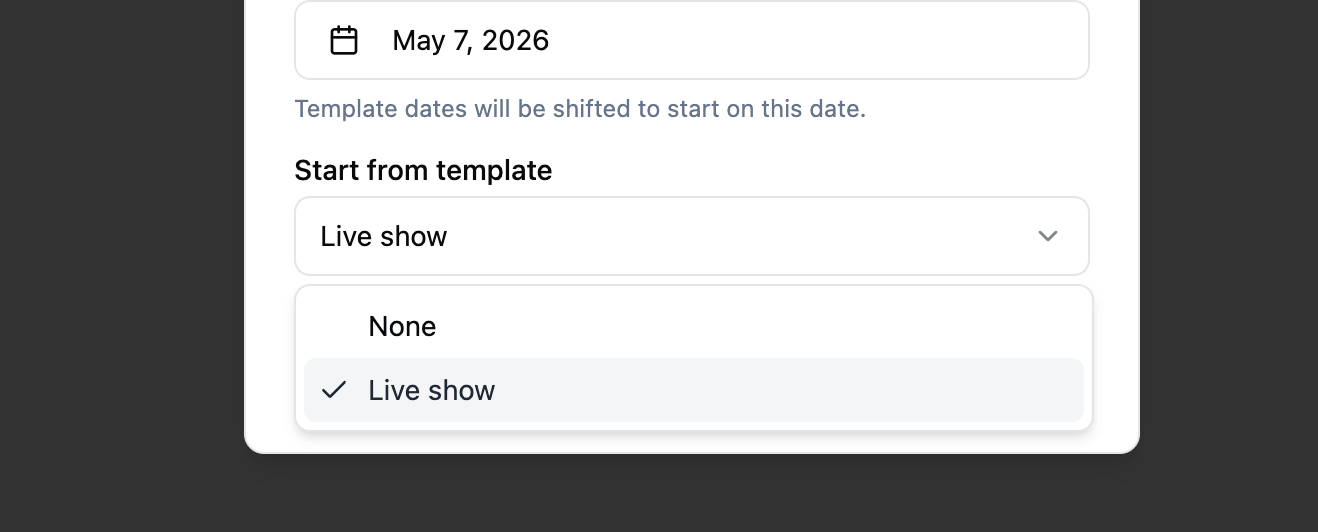
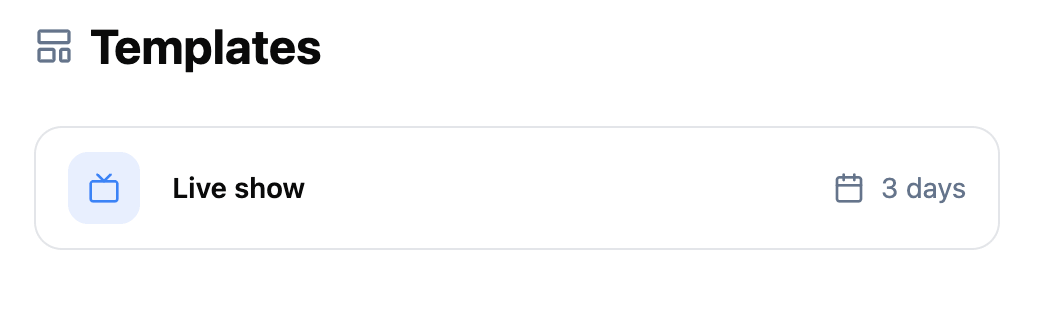
Convert any project into a template from its Settings page. Templates show up under their own page in the side menu, and they are filtered out of your normal projects list so they do not clutter the day-to-day view. You can also revert a template back to a regular project at any time.
CSV import for budget and schedule
If your team already plans budgets in a spreadsheet, or you have inherited a run of show in CSV form, you no longer have to retype it. Both the budget and the schedule now have an Import CSV option.
The import is a multi-step flow:
- Paste your CSV or TSV data with a header row.
- Map each column to the right field. Mappings are auto-guessed from the header names, so most imports just need a quick check.
- Preview the resolved items before they get added.
Schedule import is smart about names. If your CSV has a column like “Team” with values like John Smith; Jane Doe, Production Planner splits on commas and semicolons and matches each name against your project team and resources. Matched names are linked automatically, and unmatched names are flagged in the preview so you know what to fix.
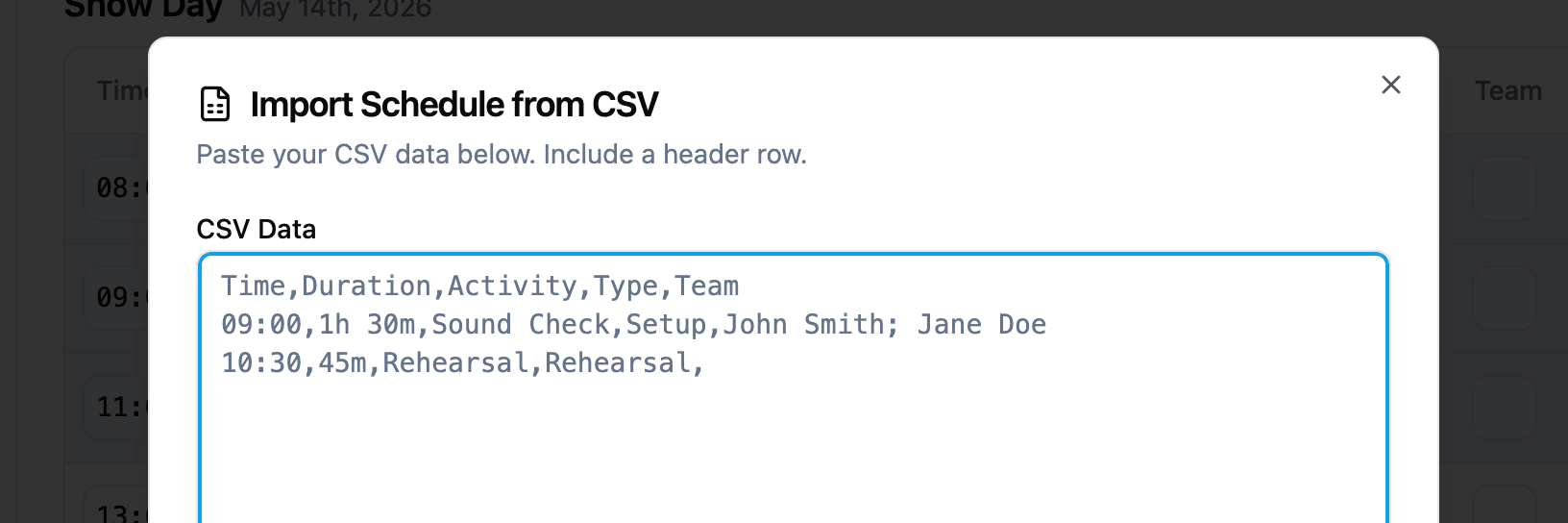
Time and duration parsing is forgiving: the importer handles 09:00, 9:00 AM, 1h 30m, 45m, plain minutes, and the usual variants. Custom schedule types resolve against the labels you have already defined on the project.
Export the schedule as CSV
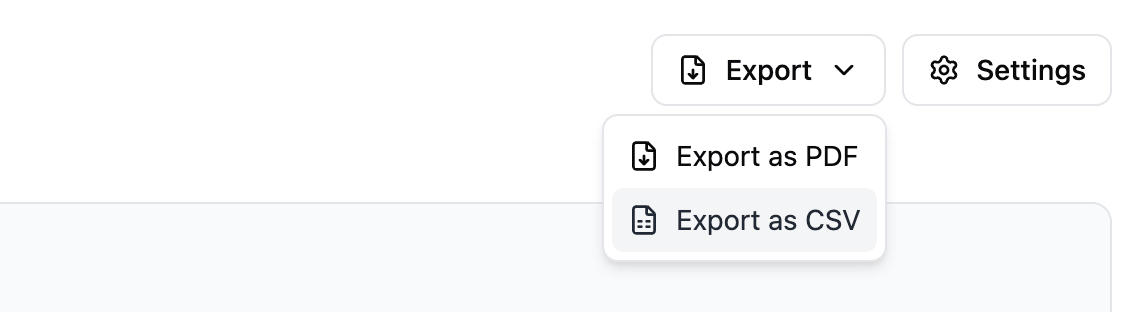
The Export PDF button on the schedule has been replaced with an Export menu. Choose PDF for the printable handout, or CSV when you need the schedule in a spreadsheet, a planning tool, or anywhere else that speaks rows and columns. The CSV includes everything you see in the schedule: dates, times, durations, activities, types, breakout tracks, linked resources, and assigned team members.
Rich-text note pages
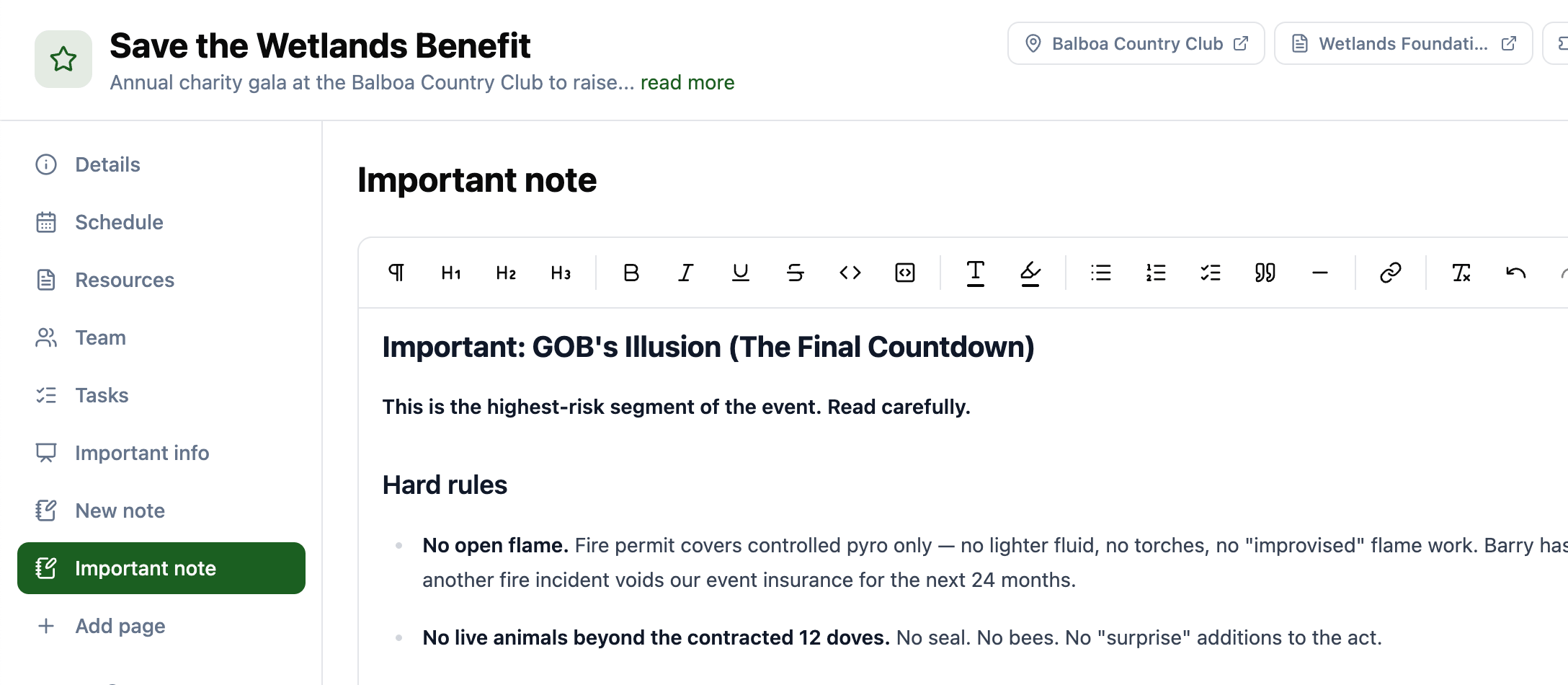
Custom pages got a new type: Note. Add a rich-text note page anywhere in your project sidebar and use it as a long-form scratch space the whole team can see. Run sheets, briefs, post-mortems, vendor instructions, anything that does not fit neatly into a task or a budget line.
Note pages share the same rich-text editor as personal notes (headings, lists, bold, italic, links, blockquotes), but unlike personal notes they are visible to the whole project team. A floating Save button appears as soon as you start editing, and Cmd+S (or Ctrl+S on Windows/Linux) saves without taking your hands off the keyboard. If two people edit at the same time, the older version is preserved so nothing gets silently lost.
Schedule editor improvements
A handful of smaller touches to the inline schedule editor:
- Keyboard handling:
Entersubmits and closes any inline popover (time, type, duration), andEscapecancels. The activity field usesCmd/Ctrl+Enterto submit so plainEnterstill inserts a newline. - No more flicker: opening an editor on one schedule item no longer re-renders the entire table. On long schedules this makes editing noticeably snappier.
Fixes and small improvements
- Fix: Project invitations no longer fail when the invited email contains uppercase letters.
- Fix: Templates and Archived projects moved out of the main projects list and into the side menu.
- Added
Cmd/Ctrl+Sto save personal notes as well, matching the new note pages.
Stay in the loop
Get product updates when new features ship. No spam, unsubscribe anytime.