June 3, 2026
How budget tracking works in ProductionPlanner.io
Track estimated vs actual costs across ten production categories, set a project cap, import from CSV, and keep the numbers in front of the people who need them. A closer look at the budget feature.
By John Barker
The spreadsheet of every production budget eventually gets two columns: estimated and actual. The first column is what you told the client. The second column is the truth. The gap between them is the thing every production manager spends the back half of the project chasing.
The budget feature in ProductionPlanner.io puts those two columns inside the project, next to the schedule, the team, and everything else the production runs on. You see what was estimated, what was spent, what is left, and which category each line lands in without leaving the application.
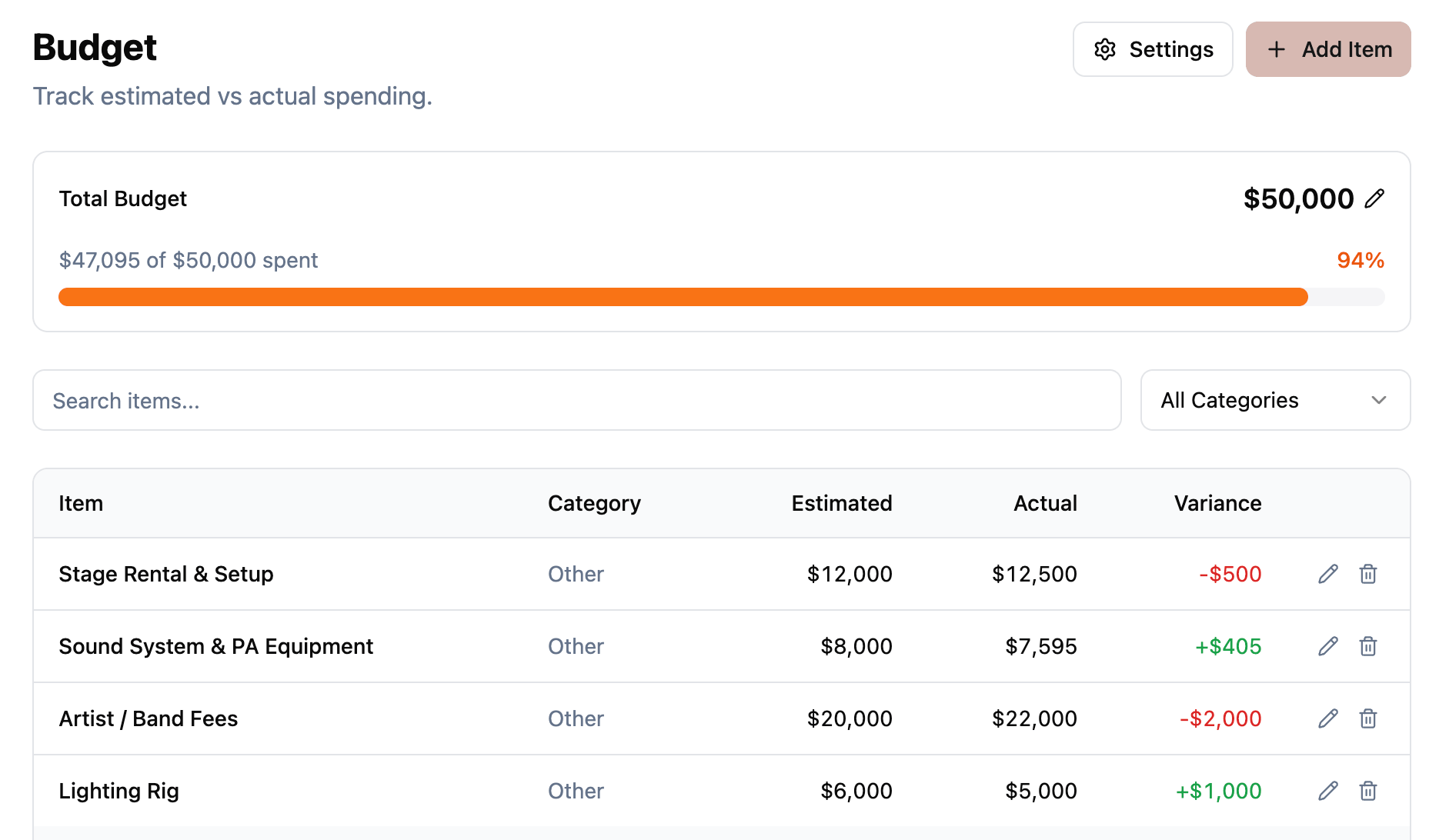
Estimated and actual, side by side
Every line item carries:
- A name for the cost, like “Venue deposit” or “Catering for 200 guests.”
- A description for the details that do not fit in the name.
- A category to roll the item up into the right bucket.
- An estimated cost, what you planned to spend.
- An actual cost, what you actually spent.
Estimated is what you book the job against. Actual is what comes in once invoices land. The variance between them is calculated automatically, so when you scan the page you see immediately which lines are tracking and which ones are over.
You can update the actual cost as invoices come in, so the page becomes a live picture of the production’s financial health, not a snapshot from week one that nobody trusts by week four.
Ten standard categories
Budget items are organized into ten categories that cover the way most production budgets are actually structured:
- Venue for rental fees and facility charges.
- Catering for food, beverages, and service staff.
- Equipment for lighting, sound, video, and other rental or purchase costs.
- Talent for performer fees, speaker fees, and related costs.
- Travel for transportation and accommodation.
- Marketing for promotional materials and advertising.
- Staffing for crew wages and contractor fees.
- Decor for design, signage, and scenic materials.
- Permits for licenses, insurance, and regulatory fees.
- Other for anything that does not fit above.
You can filter the budget page by category to focus on just one area. Useful when you are reconciling a single vendor or working out where a category is running over.
The cap on the project
Set a total budget cap on the project and the budget page shows a progress indicator comparing actual costs against the cap. It updates as you log spending, so you always know how close you are to your ceiling without having to add the column yourself.

You can also set the project currency. USD, EUR, GBP, SEK, and the rest of the usual list are available. The currency applies to every item in the budget so the page reads consistently.
Bring an existing budget in via CSV
Most budgets do not start in ProductionPlanner.io. They start in a spreadsheet, then they evolve through some combination of email, conversations with vendors, and revised quotes. By the time you are ready to drop it into a project, it is already a real document.
The Import CSV button on the budget page takes that document and brings it straight in. It is a three step flow:
- Paste your CSV or TSV with a header row in the first row.
- Map each column to a budget field. Mappings are auto-guessed from the header names, so most of the time you just confirm.
- Preview the resolved rows, then import.
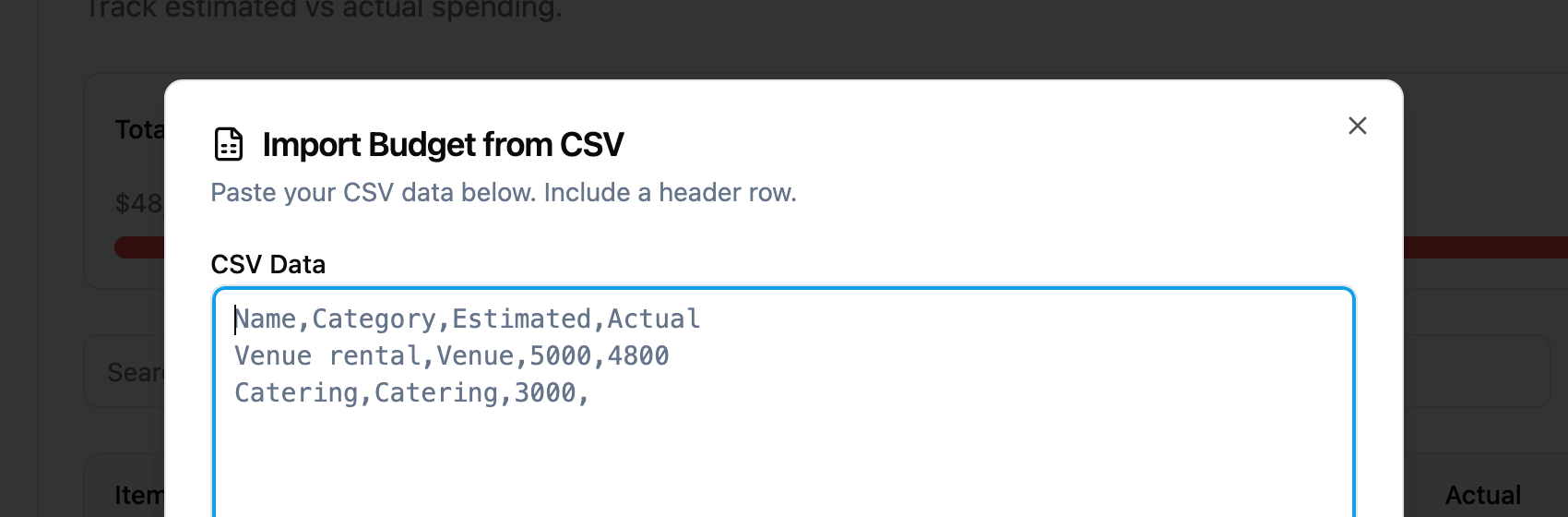
$5,000 are parsed automatically.Currency strings like $1,200 parse to numbers without you reformatting them. Categories are matched against the standard list and fall back to Other if a value does not resolve. Rows without a name are skipped.
Imports are additive, so you can run them more than once and existing items are not touched. Useful when you want to bring in a vendor’s quoted line items as actuals once the invoice clears.
Limited to the people who need it
Budgets are sensitive. The lighting designer probably does not need to see what the venue cost. The talent does not need to see what other talent cost. The intern absolutely does not need to see what catering quoted before they negotiated it down.
Budget data in ProductionPlanner.io is only visible to project members with write permission. Read-only members do not see it at all. The page is not in their sidebar, and the data is not in the API responses they receive. This keeps the financial picture limited to the people running point on it.
How it fits with the rest of the project
The budget connects to the rest of ProductionPlanner.io in a few places:
- Categories show up alongside the budget cap on the project details page so the headline numbers are visible without having to open a separate page.
- Every change to the budget is recorded in the project’s activity log, so you have a full trail of who added or changed what.
- Permissions inherit from the project team, so granting or revoking access happens in one place.
Try it with your next production
The budget feature is available in every project on any plan. Open the Budget page in your sidebar, add line items, set a cap, pick a currency, and start tracking estimated against actual.
If you are managing a production budget and your current view of the numbers is a spreadsheet that lives in two different inboxes, create your account and try the budget alongside your schedule and team.
Read the full budget documentation for a detailed walkthrough.
Stay in the loop
Get product updates when new features ship. No spam, unsubscribe anytime.