July 15, 2026
How custom pages work in ProductionPlanner.io
Embed external webpages, YouTube videos, project resources, and rich-text notes as their own pages in your project sidebar. A closer look at the custom pages feature.
By John Barker
Every production ends up using tools that ProductionPlanner.io does not own. A shared spreadsheet of vendor contacts. A reference video the team should watch. A planning board that lives somewhere else. A long-form brief that does not belong in a chat thread.
Custom pages let you bring all of that inside the project, each with their own entry in the sidebar, so your team has one place to navigate from instead of half a dozen.
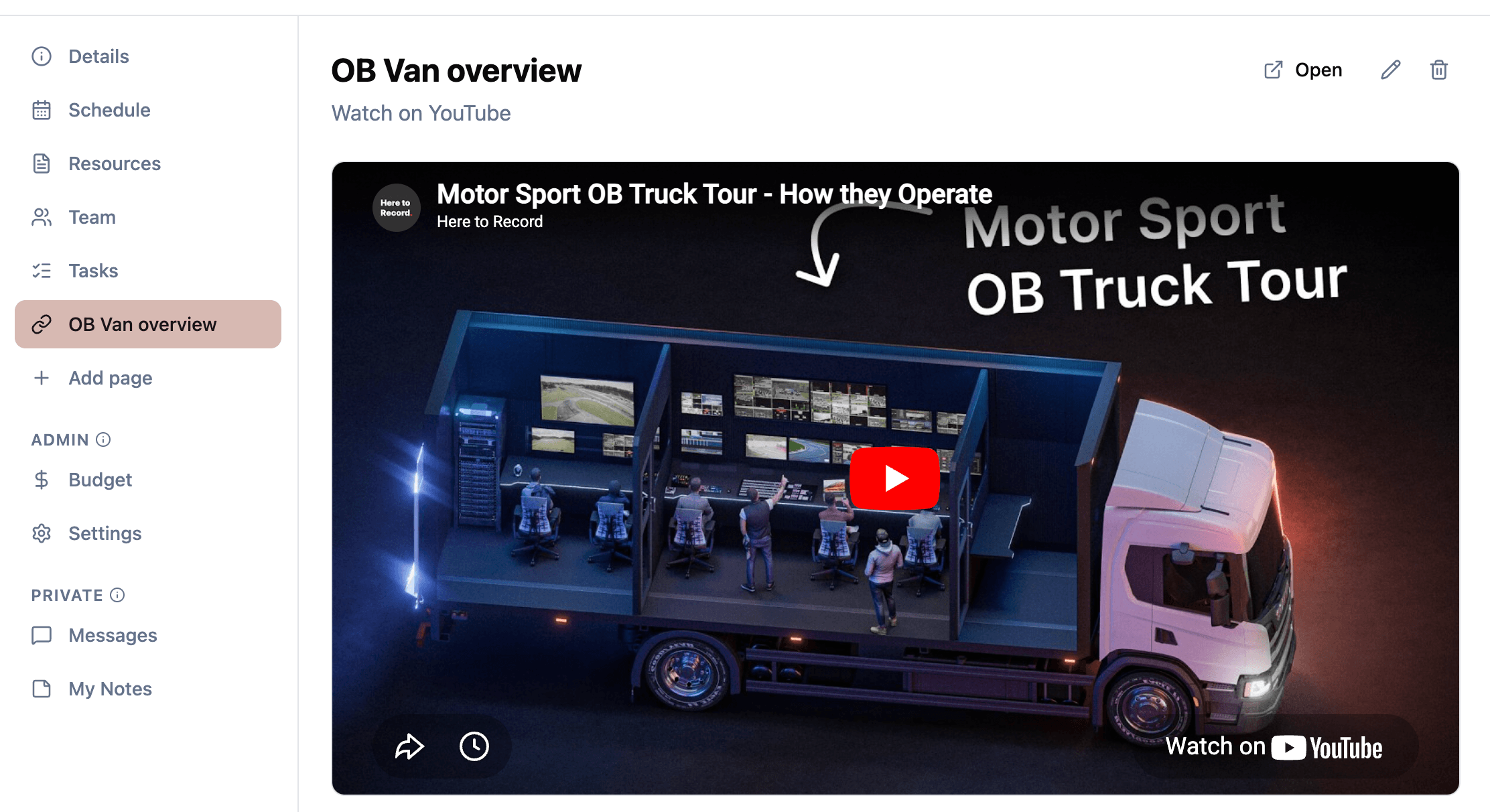
Four page types
Custom pages come in four flavours. Each one is designed for a specific kind of content that productions consistently need to share.
Webpage embed
The most flexible option. Drop in any URL that supports iframe embedding and the content renders directly inside the project. Shared spreadsheets for vendor contact lists. Collaborative boards for visual planning. Notion pages with the brief. Live dashboards during the event. Anything your team is already using that supports embedding can live one click away from the schedule.
YouTube
Paste the YouTube video ID and the player embeds inline. Useful for reference performances, venue walkthroughs, training videos, or anything else where “watch this before tomorrow” is on the prep list. The video plays in the project, with no external tab to open or lose.
Resource
Pins a specific file or link from your project’s resources as its own top-level page. Use it for the documents that matter most. The current cue sheet. The signed contract. The venue floor plan. Putting it in the sidebar means your team does not have to dig through folders to get to the file they need every five minutes.
Note
A rich-text page shared with the whole project team. The editor supports headings, lists, bold, italic, links, blockquotes, and the rest of the standard formatting. Use it for content that does not fit into a task or a message:
- Run sheets and detailed briefs.
- Vendor instructions and special requirements.
- Post-mortems and lessons learned.
- Travel logistics for crew.
- Stage manager notes that need to be persistent.
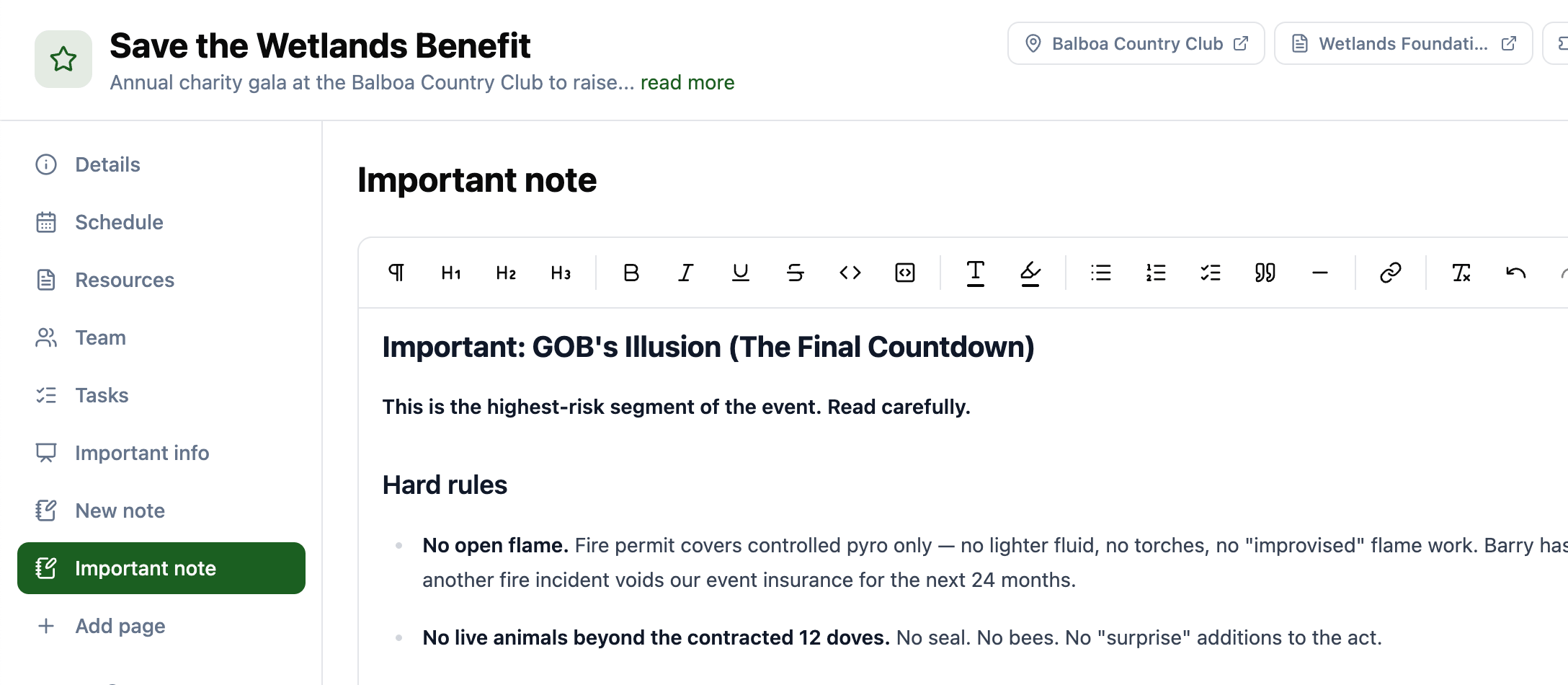
A floating Save button appears as soon as you start editing, and Cmd or Ctrl + S saves without leaving the keyboard. If two team members edit at the same time, the older version is preserved in history so nothing is silently lost.
For private per-user notes, use the separate Personal Notes feature instead. Note pages are visible to the whole project team.
Page properties
Each custom page has:
- A title shown in the sidebar and at the top of the page.
- A description for context about what the page contains.
- An icon chosen from 10 options (clock, file, video, music, image, map pin, wrench, book, presentation, link) so the page is easy to spot in the sidebar.
- An external link button to open the embedded content in a new tab when the embed is not enough.
The icon matters more than it sounds. A sidebar with ten custom pages all sharing the same default icon is harder to read than a sidebar with ten pages each carrying a distinct visual.
Common use cases
A few patterns we have seen from teams using custom pages:
- A shared vendor contact spreadsheet embedded so the team does not have to switch tabs.
- A YouTube playlist of reference performances embedded for the creative team.
- A collaborative planning board embedded for the design team.
- A live dashboard or monitoring tool embedded during the event itself.
- A Note page with the run-of-show brief, edited live as decisions are made.
- An external ticketing system or registration page embedded for the producer to track in real time.
The common thread is “content the production needs, that does not have a built-in home elsewhere in the project.”
How it fits with the rest of the project
Custom pages are first-class project content:
- They appear in the project sidebar alongside Schedule, Resources, Tasks, and the rest.
- They are visible to the project team by default, and can be included in guest links if you want to share them with someone outside the team.
- Creating, editing, and deleting pages is recorded in the project’s activity log.
Try it with your next production
Custom pages are part of every project on any plan. Open a project, click “Add page” in the sidebar, pick a type, and start embedding. The content your team is already using elsewhere becomes one click away from the schedule.
If your production currently lives in ProductionPlanner.io plus four other tabs, create your account and try pulling the other tabs into the project.
Read the full custom pages documentation for a detailed walkthrough.
Stay in the loop
Get product updates when new features ship. No spam, unsubscribe anytime.