July 8, 2026
How guest links work in ProductionPlanner.io
Share read-only access to specific parts of your project with clients, vendors, or stakeholders without giving them an account. A closer look at the guest links feature.
By John Barker
Not everyone on a production should be a full team member. Clients want to see the schedule but not edit it. Vendors need the load-in details but should not see the budget. Sponsors want a peek at the show flow without being signed up for a tool they will use once.
Guest links in ProductionPlanner.io are the answer to “I want to share this without giving them an account.” Read-only access, pick the pages they can see, send them a link.
A link per audience
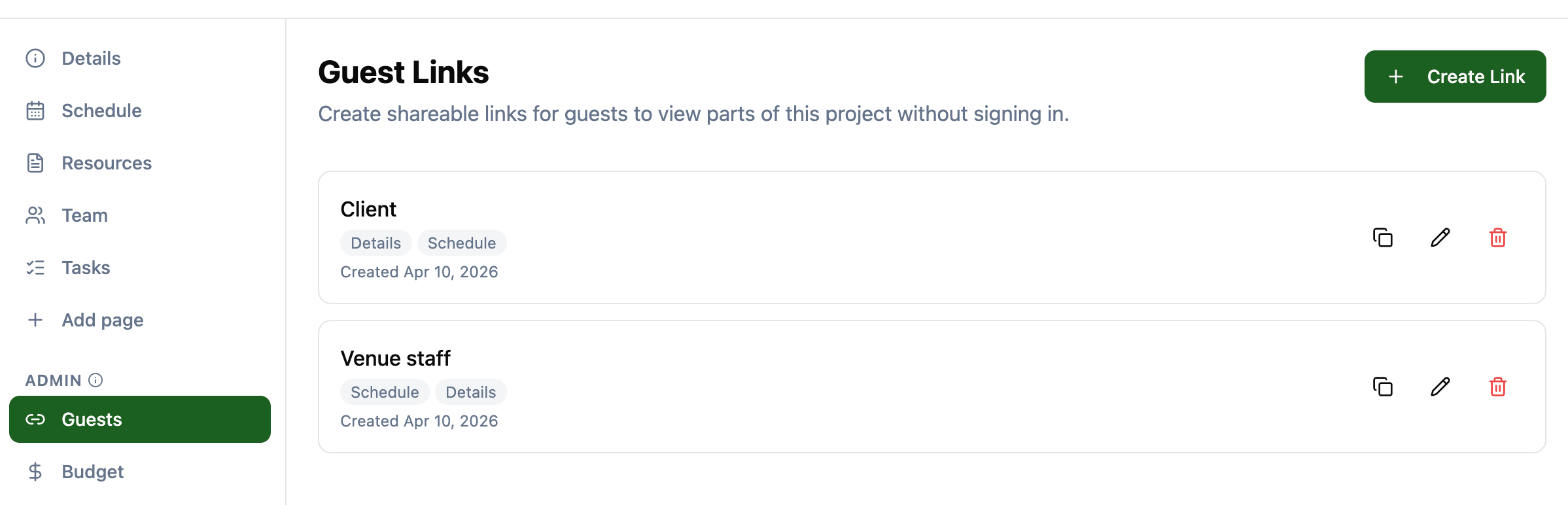
Each guest link is named so you can keep track of who you sent what. Common patterns are “Client Preview,” “Vendor Access,” “Sponsor View,” or just the name of the company. The list on the Guests page shows every link you have created, what each one can see, and gives you copy, edit, and delete actions on each row.
You build one link per audience. The client gets a link that shows them the schedule and the resources. The vendor gets a link that shows them just the schedule. The sponsor gets a link with details and a custom page you have prepared for them. Same project, three different views.
Pick exactly which pages they see
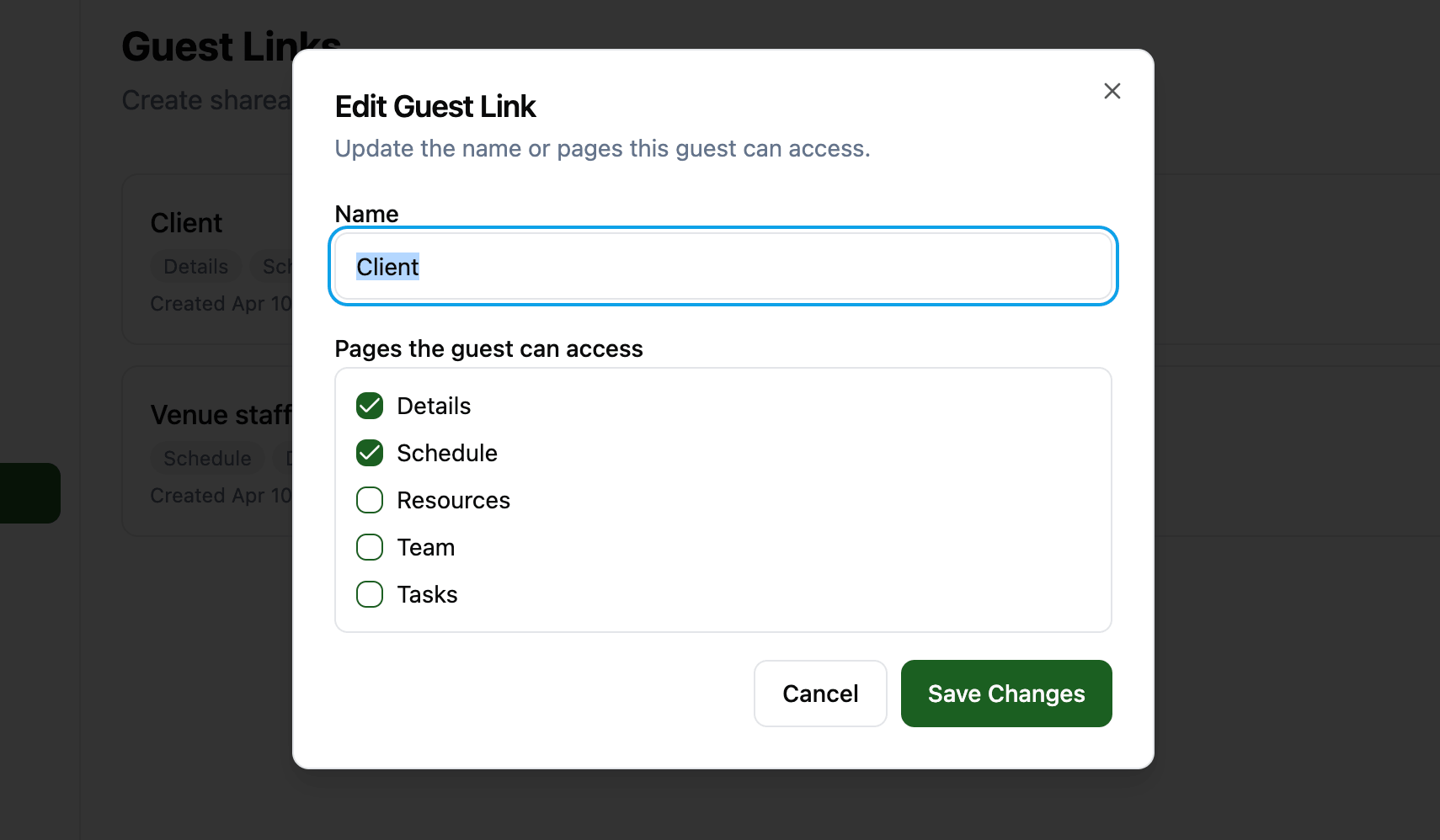
When creating a guest link you check off the pages you want to share. The available pages are:
- Details with project info, dates, and locations.
- Schedule with the full production schedule.
- Resources with uploaded files and links.
- Team with team member names and roles.
- Tasks with the task list and progress.
- Custom pages that have been added to the project.
Admin-only pages like Budget, Settings, and Guests are never shareable. Private pages like Messages and My Notes are never shareable. There is no “accidentally share the budget” path.
Sharing the link
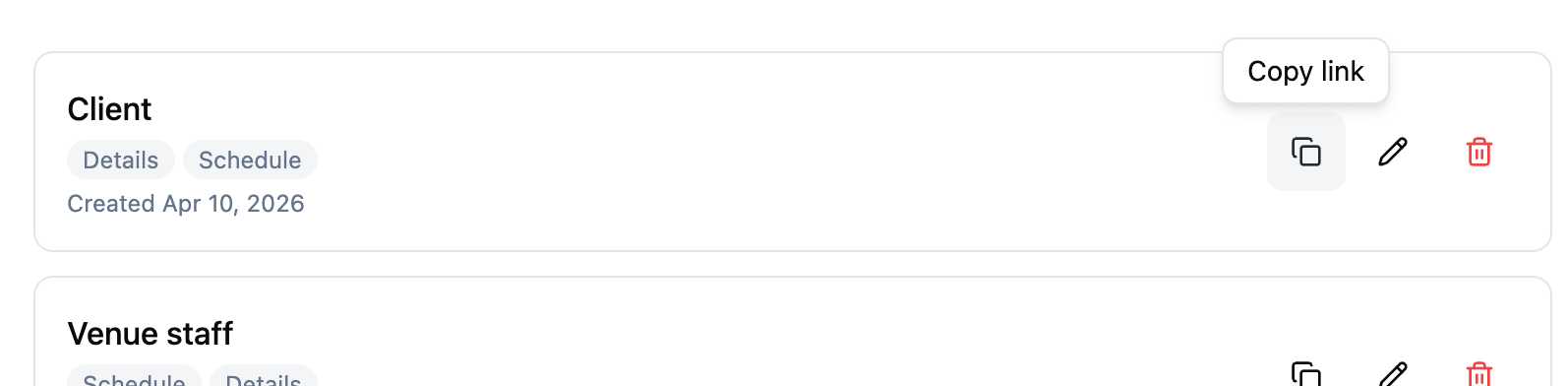
When you create a guest link the URL is copied to your clipboard automatically, ready to paste into an email or a message. You can also copy it again at any time from the guest links list using the copy button.
The link takes guests directly to the first allowed page. No login. No signup flow. They open the link and they are in. They can navigate between the pages you have allowed using a simplified sidebar that only shows what they have access to.
What guests see
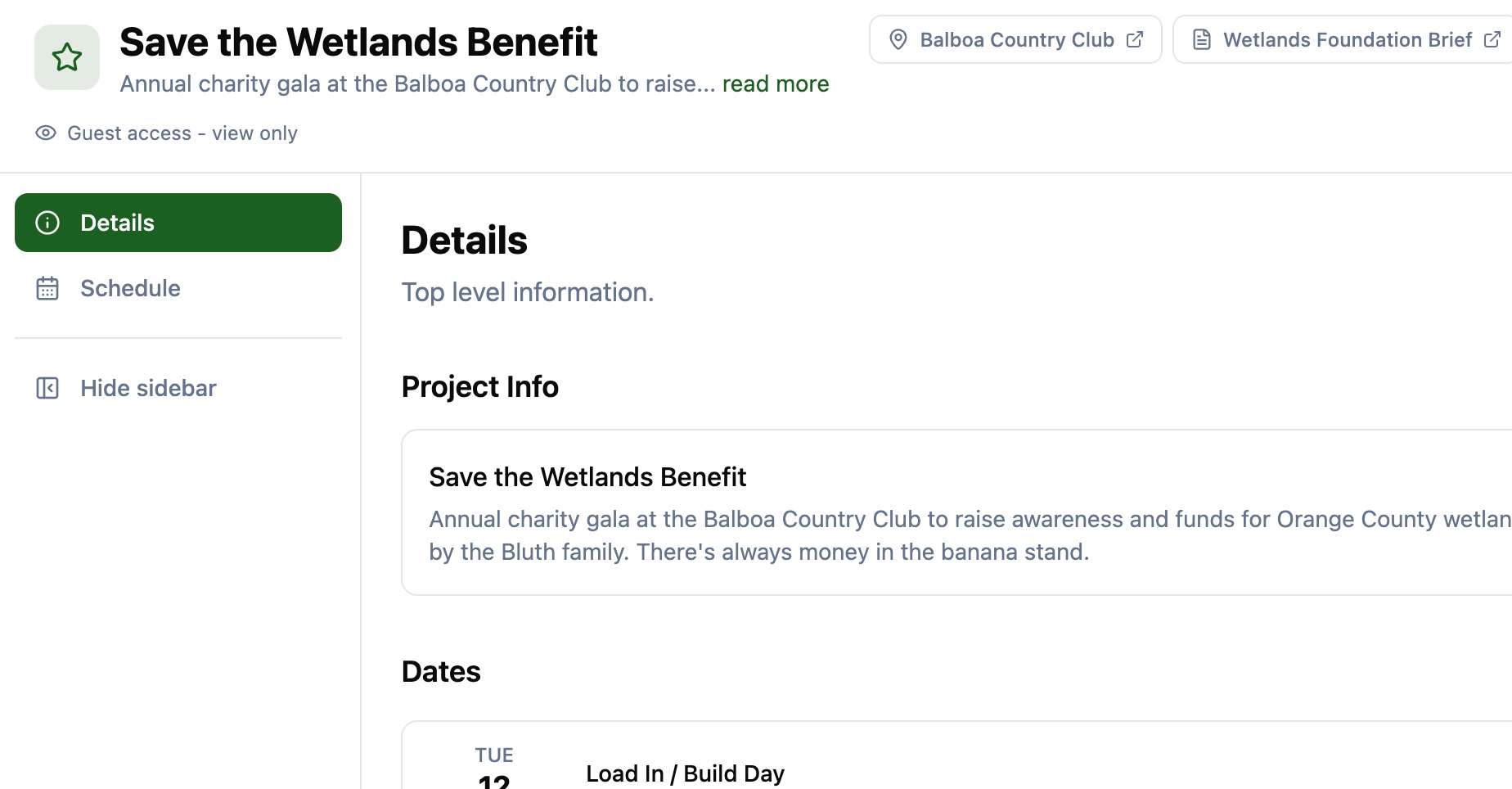
The guest view is deliberately stripped down. They see a simplified version of the project:
- The project banner, name, description, and important links are always visible.
- A “Guest access, view only” indicator sits below the project title.
- The sidebar contains only the pages you have allowed.
- All editing controls are hidden. Guests cannot modify any project data.
- On the Team page, only names and roles are shown. Email addresses and phone numbers are hidden so a shared link does not become a contact list leak.
- On the Tasks page, guests can see task progress but cannot mark tasks as done.
Real-time updates
A common worry with read-only sharing is that the link goes out, the schedule changes, and the guest is looking at a stale picture. Guest views update in real time. When an editor on the project makes a change, the guest sees it without refreshing. You do not have to resend the link or remember which version they have.
Edit and revoke at any time
Plans change. The client wants to see the team page after all. The vendor’s access should be cut after their day on the project. Anything you can configure on a link, you can change.
From the Guests page you can:
- Copy a link to share it again.
- Edit a link to change its name or update which pages are accessible. Changes take effect immediately, so removing a page from a link cuts the guest off it on their next navigation.
- Delete a link to permanently revoke access. Anyone who has the link loses access immediately.
Security model
Guest links use a unique, randomly generated token in the URL. Anyone with the link can view the allowed pages, the same model as “anyone with the link” sharing in other tools. A few things worth keeping in mind:
- Only share links with people you trust to see the content.
- Delete a link when access is no longer needed and the link is revoked instantly.
- Guest links do not expire on their own. They remain active until you delete them.
- Guests cannot access anything beyond the pages you have explicitly allowed. The budget, the messages, the personal notes, and the settings are never reachable from a guest link.
How it fits with the rest of the project
Guest links lean on the same project structure as everything else:
- They share existing project pages, with no separate “guest content” to maintain.
- The page set you can share covers your project’s details, schedule, resources, team, tasks, and any custom pages you have added.
- Creating, editing, and deleting links is recorded in the project’s activity log.
You build the project once. Sharing parts of it with people outside your organization is a few clicks.
Try it with your next production
Guest links are part of every project on any plan. Open a project, head to the Guests page in the admin section, create a link, pick the pages, and copy the URL.
If you have been emailing PDF screenshots of the schedule to a client every time it changes, create your account and try sending them a guest link instead.
Read the full guest links documentation for a detailed walkthrough.
Stay in the loop
Get product updates when new features ship. No spam, unsubscribe anytime.