April 9, 2026
How resources work in ProductionPlanner.io
Upload files, organize folders, preview documents, and collect files from anyone with secure upload links. A closer look at the resources feature.
By John Barker
Every production has files. Lighting plots, stage designs, contracts, reference videos, vendor links, rider documents. The list grows quickly, and so does the mess when those files live across email threads, shared drives, and group chats. Resources in ProductionPlanner.io give your team one place to upload, organize, and share everything a project needs.
This post walks through how resources work, including file uploads, link references, folders, previews, and file requests.
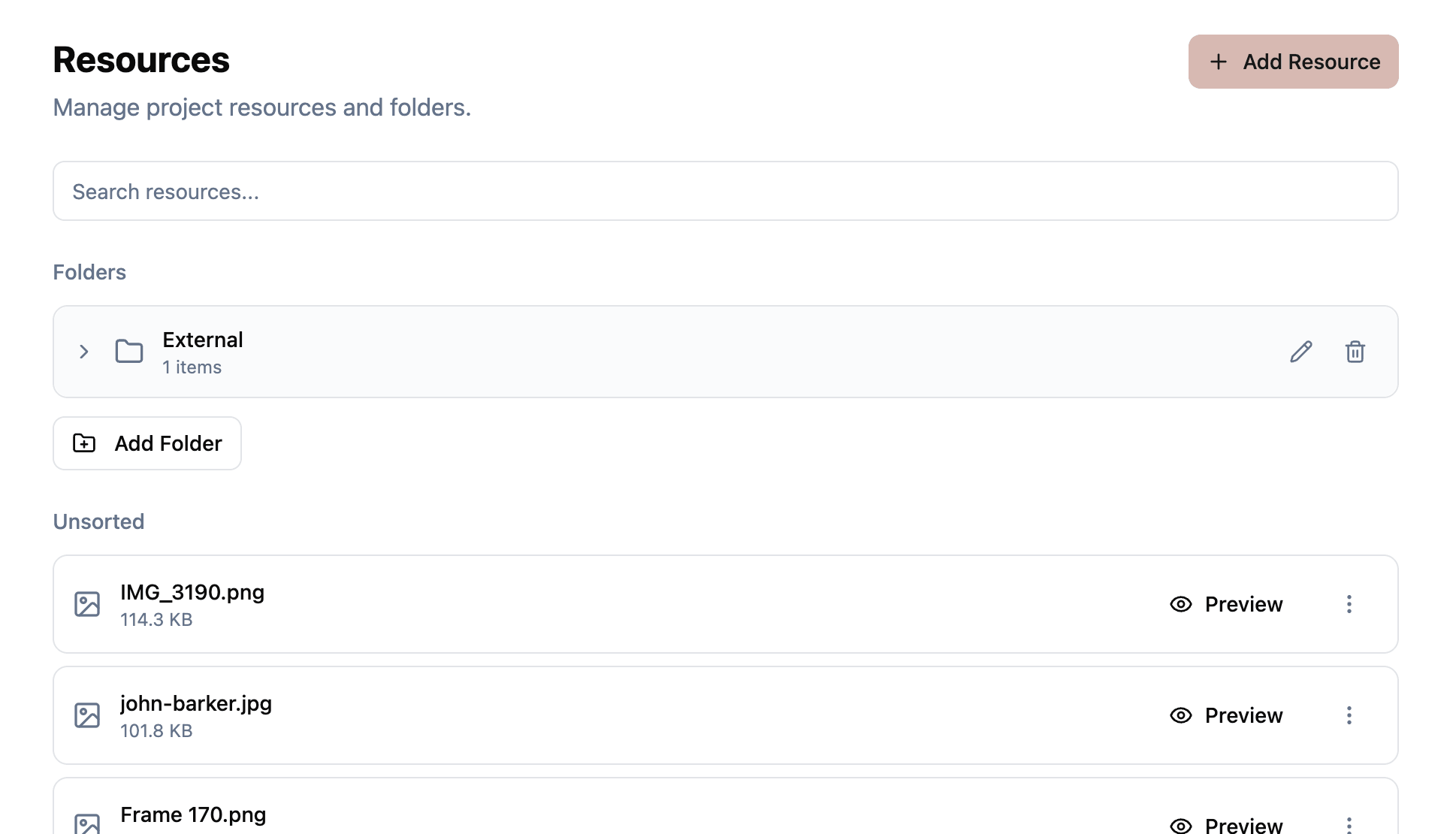
Upload files and add links
You can add two types of resources to a project: files and links.
Files are uploaded directly. Drag and drop one or more files into the upload dialog, or click to select them from your computer. You see a progress indicator as each file uploads.
Links are references to external content. If your team uses a Google Drive folder, a Dropbox link, or a vendor’s online portal, you can add those URLs as resources alongside your uploaded files. Each link gets a name so your team knows what it points to.
Organize with folders
As your project grows, a flat list of files gets hard to navigate. Folders let you group related resources together. You might create folders for things like “Venue Documents,” “Talent Contracts,” or “Show Day Materials.”
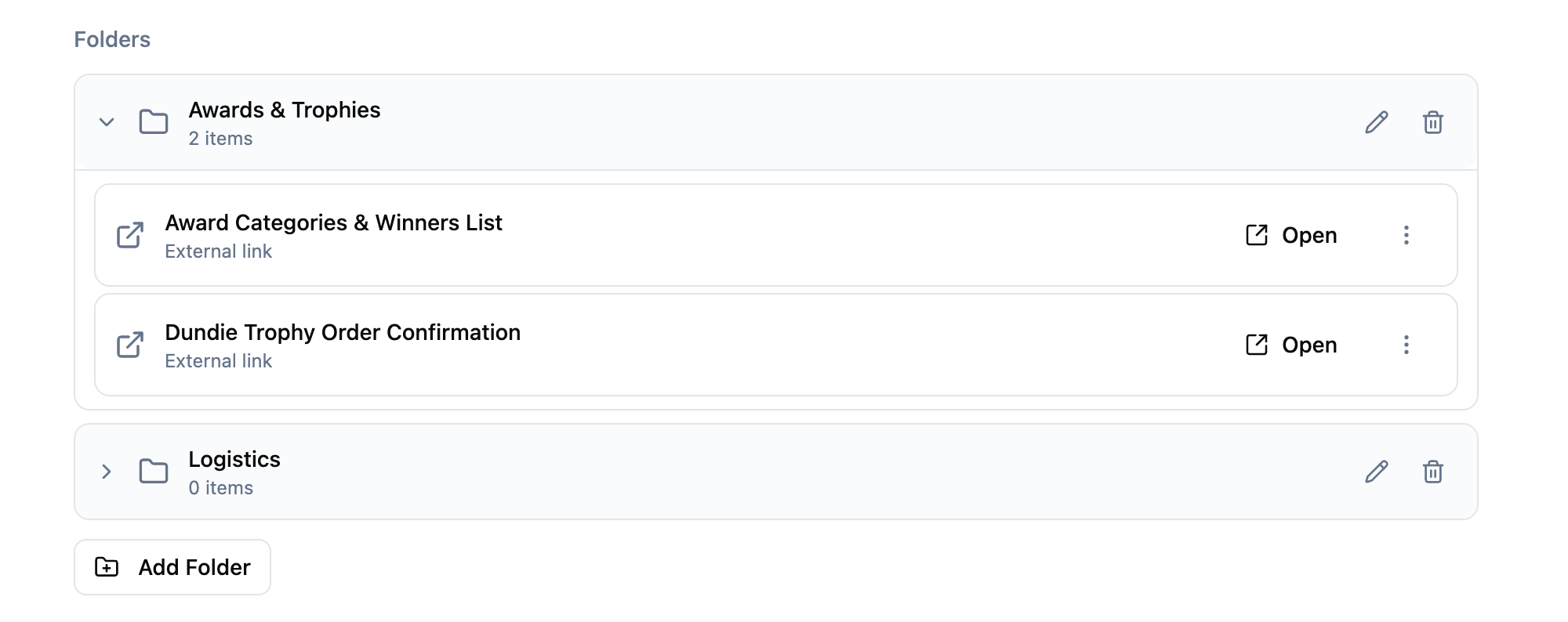
You can move resources into a folder when you upload them, or move them later from the resource’s menu. Rename or delete folders as your project evolves. If you delete a folder, the resources inside it are not removed. They move back to the unsorted section so nothing gets lost.
Resources that have not been assigned to a folder appear in an “Unsorted” section at the bottom of the page. A search bar at the top filters across all resource names, so you can find what you need without scrolling through every folder.
Preview files without leaving the project
You do not always need to download a file to check its contents. ProductionPlanner.io shows inline previews for common file types, including images, videos, audio files, PDFs, and text files. Click “Preview” on a resource to open it in a viewer without leaving your project. If you do need the file on your computer, a download button is always available.
For links, clicking “Open” takes you to the external URL in a new tab.
Request files from anyone
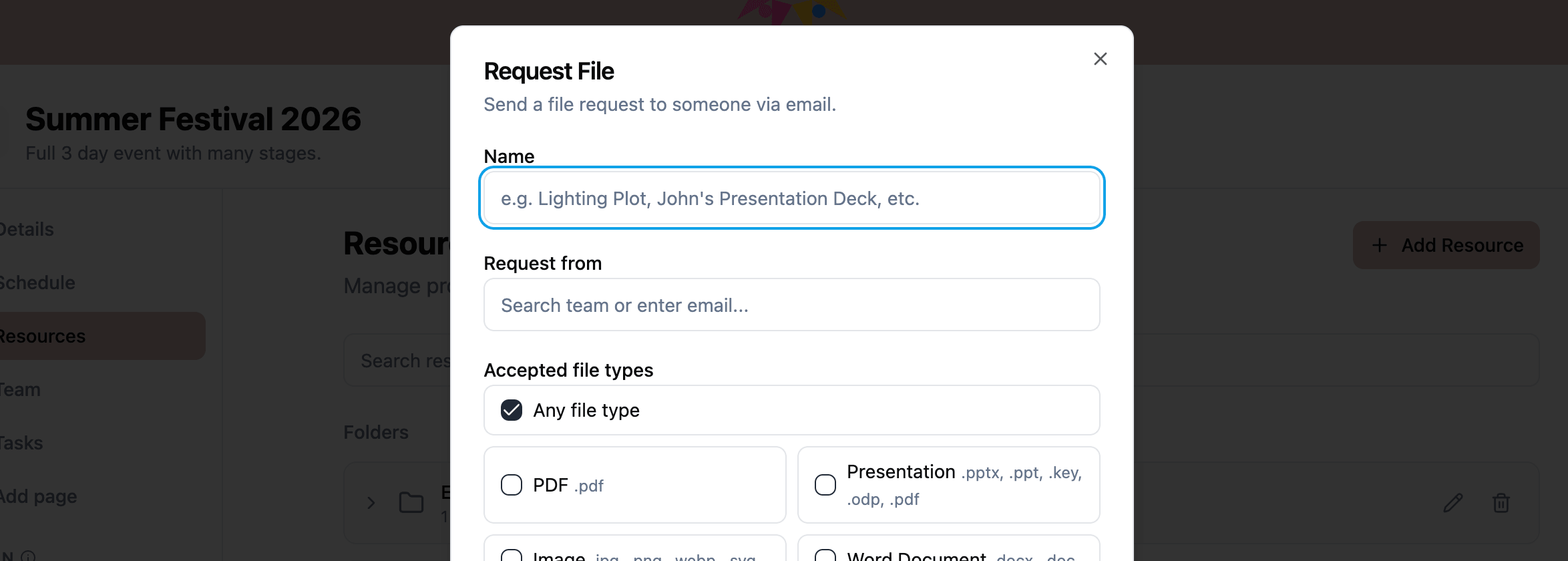
This is where resources go beyond basic file storage. File requests let you ask someone, even someone who is not a team member on the project, to upload a specific file.
Here is how it works:
- You create a file request by entering a name (like “Lighting Plot” or “Signed Contract”), the recipient’s email address, and an optional message explaining what you need.
- You can specify which file types you will accept: PDFs, images, presentations, Word documents, spreadsheets, video, audio, or any file type.
- You choose a target folder so the file lands in the right place when it arrives.
- The recipient gets an email with a secure link. They do not need an account to upload.
- Once they upload the file, you get a notification and the file appears in your project’s resources, already in the folder you chose.
File requests are visible on the resources page alongside your other resources, so you can track what has been delivered and what is still outstanding.
Why file requests matter for productions
Productions involve a lot of people who are not on your core team. Venues send floor plans. Vendors provide certificates of insurance. Talent submits riders and tech specs. Chasing those documents over email means things get buried or forgotten.
File requests give you a structured way to collect what you need. You see the status of each request at a glance, and delivered files go straight into your project without any manual re-uploading.
Permissions and activity tracking
Resources respect the permission system you set up for your team. Team members with read access can view and download resources. Team members with write access can upload files, add links, create file requests, manage folders, and archive resources.
Every action on a resource is recorded in the project’s activity log. You can see who uploaded a file, who moved it, who archived it, and when. This is useful when you need to trace back a change or confirm that a deliverable was received.
Archiving instead of deleting
When a resource is no longer relevant, you archive it instead of deleting it permanently. Archiving removes the resource from the active view but keeps the record intact. This is intentional. In production work, you may need to reference old files later, and permanent deletion is risky when multiple people are contributing to the same project.
What you can upload
You can upload any file type. When creating file requests, you can restrict the accepted types to one or more of the following categories:
- Presentation (PowerPoint, Keynote, and similar formats)
- Image (JPEG, PNG, WebP, SVG)
- Word document
- Spreadsheet (Excel, CSV)
- Video (MP4, MOV, WebM)
- Audio (MP3, WAV, AAC)
Or you can accept any file type if you do not need to restrict it.
Try it with your next project
Resources are available in every project on any plan. Open a project, navigate to Resources in the sidebar, and start uploading files, adding links, or sending file requests.
If you want to see how resources fit into the rest of ProductionPlanner.io, create your account and try it with your next production.
Read the full resources documentation for a detailed walkthrough of every feature covered here.
Stay in the loop
Get product updates when new features ship. No spam, unsubscribe anytime.