April 24, 2026
How the production schedule works in ProductionPlanner.io
Build day-by-day run of shows with inline editing, color-coded item types, breakout sessions, linked resources, and printable PDFs. A closer look at the schedule feature.
By John Barker
Every production runs on a schedule. Load-in at 7am, soundcheck at 10, doors at 6, show at 7:30. When the day is tight, a vague shared document or a group chat message is not enough. The schedule in ProductionPlanner.io gives your team a single, timezone-aware run of show for every day of the project, with live times, color-coded activities, and linked files at every step.
This post walks through how the schedule works, from building a day of timed items to handling parallel tracks, overnight sessions, and printable call sheets.
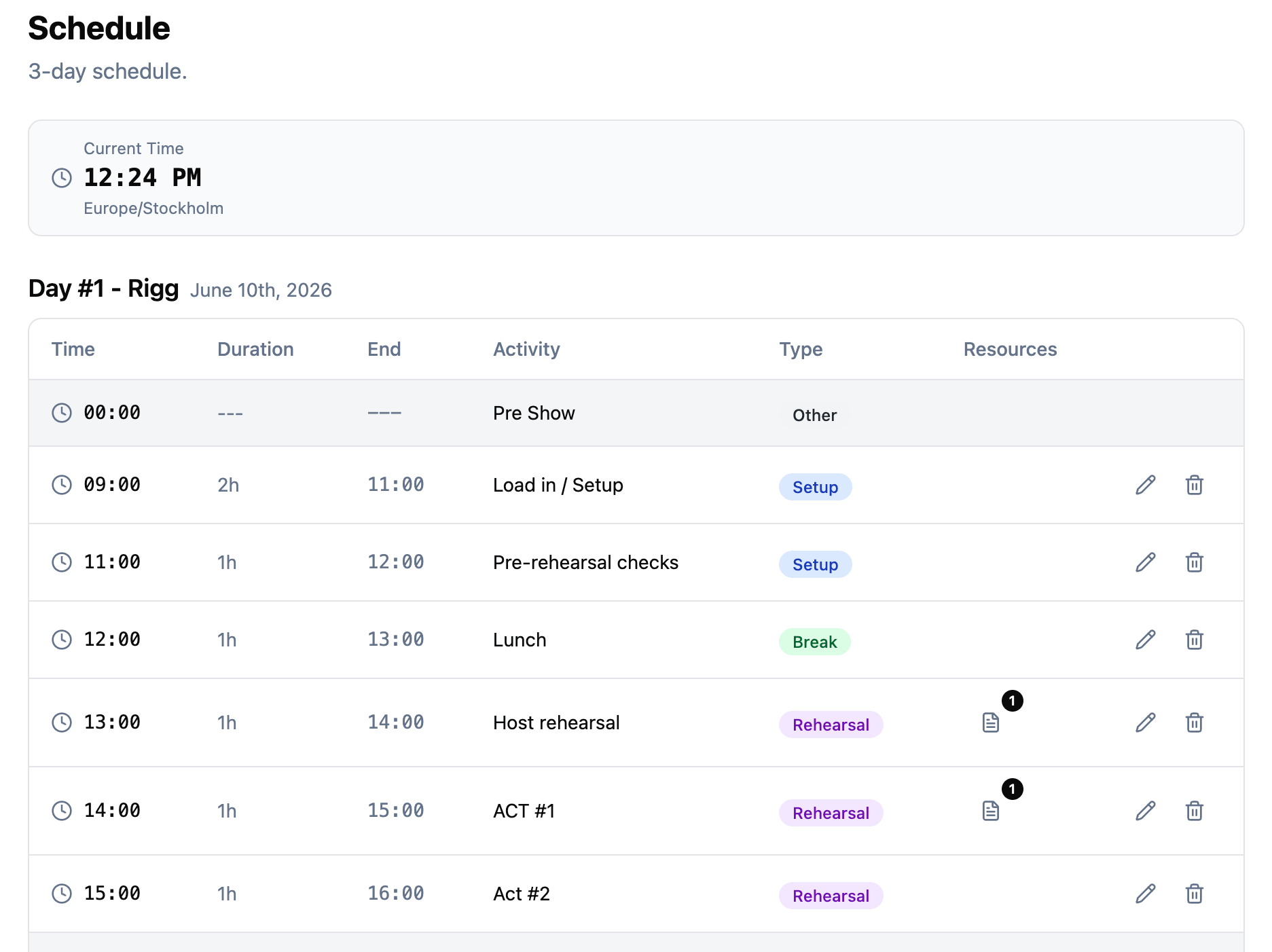
A schedule for every date in your project
Each date on a project gets its own schedule. A single-day shoot has one schedule. A weeklong conference has seven. Every day is independent but lives together under the same project, so your team navigates between days without losing context.
A schedule is made up of timed items, and each item has:
- An activity name describing what happens during that block.
- A start time in HH:mm format.
- A duration in minutes. The end time is calculated automatically, so you never have to do the math.
- A type that categorizes the item and gives it a color.
- Team members assigned to it.
- Linked resources such as run sheets, cue lists, or reference files.
Items are automatically sorted by start time, so the schedule always reads top to bottom in chronological order. Add a 7am load-in after you have already entered an 8am breakfast and it slots into the right place on its own.
Edit items in place
A run of show changes constantly. Times shift, durations stretch, titles get renamed on the fly. Opening a dialog every time you need to change a minute or two breaks your rhythm, so schedule items are editable directly in the table.
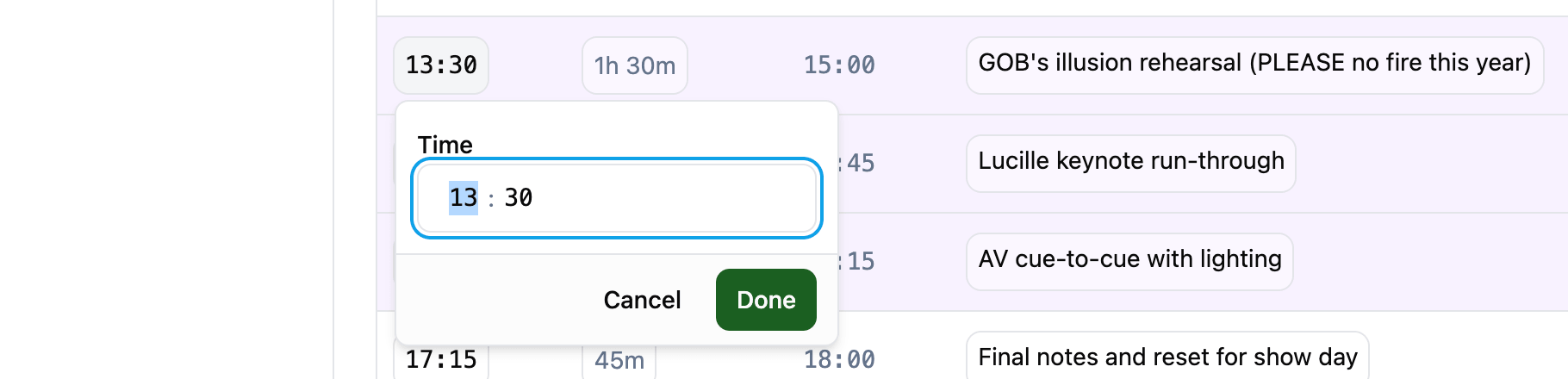
Click a time to change it. Click a title to rename it. Click a type to recategorize. Click a duration to stretch or shorten it. You never leave the schedule view, which means iterating on a tight day feels like editing a spreadsheet rather than filling out forms.
Assign team members at a glance
Each schedule item can show who is assigned to it. The team members column surfaces assignments right next to the times and types, so you can scan a full day and spot gaps and overlaps without opening every item.

This is especially useful when a crew member needs to know when they are on, or when a producer needs to confirm that every block of the day has coverage.
Color-coded item types
Reading a dense schedule is a lot easier when the shape of the day is visible at a glance. Every schedule item has a type, and every type has a distinct color.
ProductionPlanner.io ships with six built-in types:
- Setup for pre-production, load-in, and configuration.
- Rehearsal for run-throughs and technical rehearsals.
- Break for meals, rest periods, and downtime.
- Show for the main event or live performance.
- Breakout for parallel sessions (more on those below).
- Other for anything that does not fit the above.
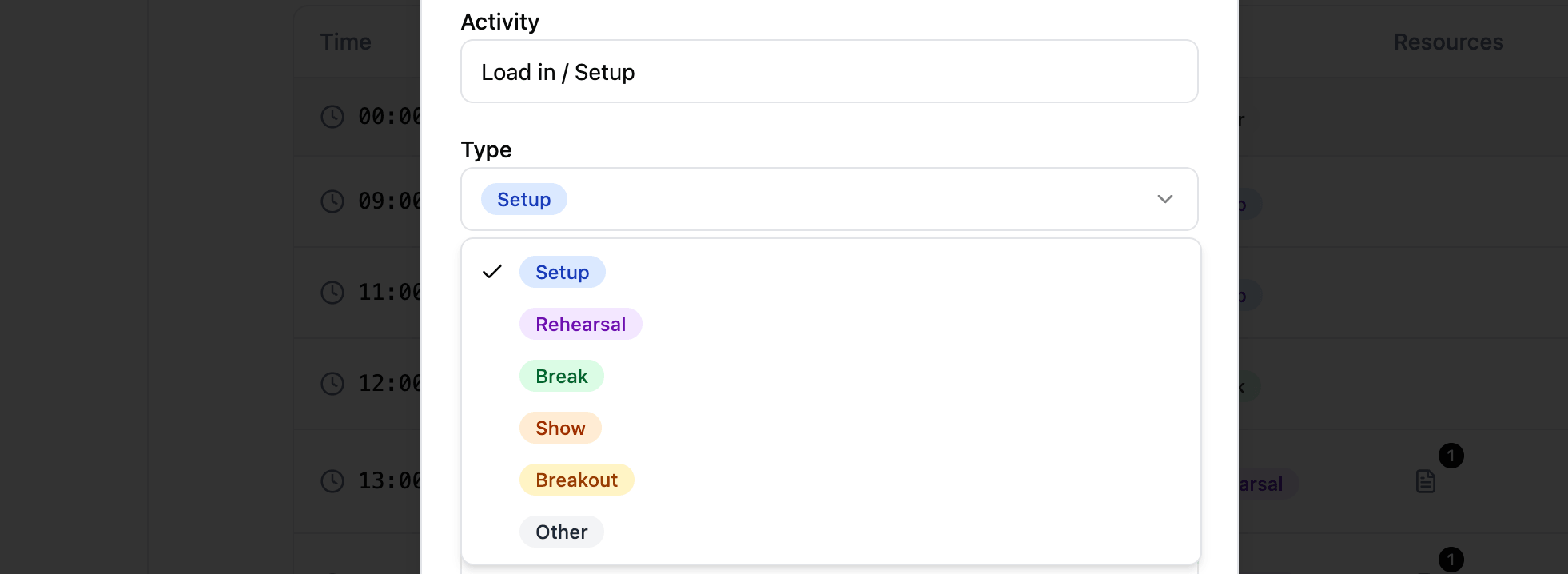
When you scroll a long day, the color bands make it obvious where the long rehearsal blocks are, where breaks fall, and where the show sits in the flow.
Custom types when the defaults are not enough
Every production has its own vocabulary. A touring band thinks in soundchecks and meet and greets. A film shoot thinks in load-in, travel, and catering. A conference thinks in keynotes and workshops.
You can define your own custom item types so the schedule reflects how your team actually works. Give each type a label and a color, and it becomes available on every schedule item alongside the defaults.
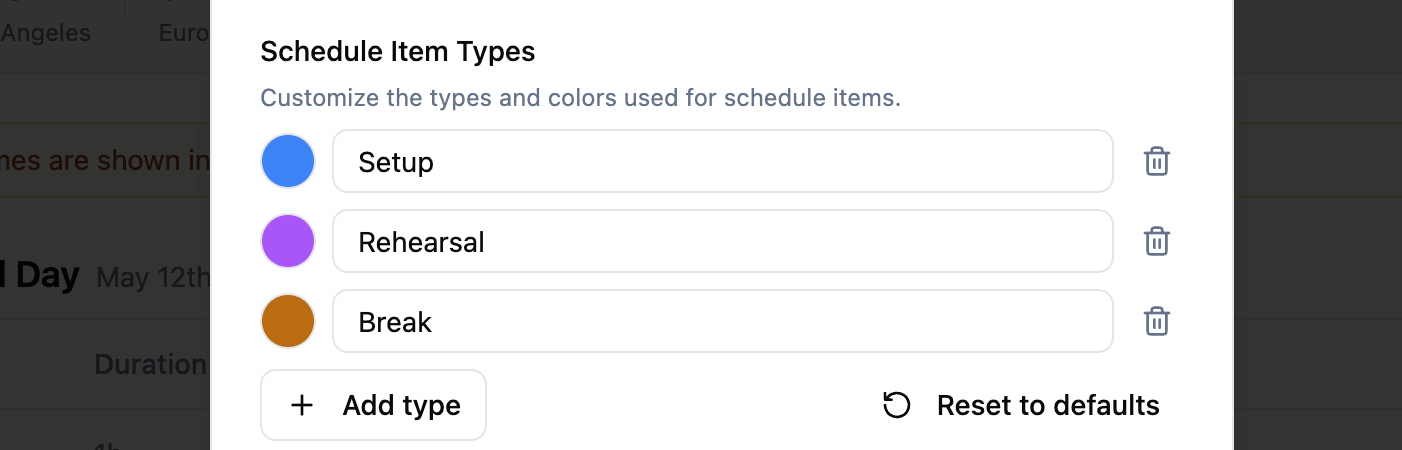
Custom types can be edited or removed at any time. If you delete a type that is still referenced by some items, those items fall back to a neutral gray style so nothing breaks.
Breakout sessions for parallel tracks
Not every schedule is linear. Conferences have multiple rooms running at once. Festivals have multiple stages. Large productions have parallel rehearsals in different spaces. The schedule handles this with breakout sessions.
A breakout is a single time slot that contains multiple tracks. Each track has its own label (like “Room A”, “Main Stage”, or “Workshop Hall”) and all tracks inside the breakout share the same start time and duration.

The schedule displays breakout tracks together, so at a glance you can see every parallel activity in that window. You can add new tracks to an existing breakout at any time as your programming evolves.
Linked resources right on the schedule
The files your team needs during a show are rarely generic. The lighting cue sheet matters for the lighting block. The run of show PDF matters at the top of the day. The vendor contact sheet matters during load-in.
Each schedule item can link to one or more resources from your project. Linked resources appear inline on the schedule item, so team members can tap through to the right file at the right time without hunting through folders. No more “where’s the cue list again?” at 4:59pm.
Timezones done right
Productions travel. Remote teams span continents. A director in London, a venue in Austin, and a lighting designer in Berlin all need to see the same schedule, without confusion about what “3 o’clock” means.
The schedule is fully timezone-aware. All times are stored and displayed in the project timezone, so a 3pm block in an Austin project is always 3pm in Austin, no matter where the viewer is sitting.
When someone opens the schedule from a different timezone, a banner lets them know they are looking at project-local time, not their own. A live clock on the page shows the current time in the project timezone, and if your local timezone differs, both clocks appear side by side so you can quickly translate.
12-hour or 24-hour, automatically
Some crews think in 2:30 PM. Others think in 14:30. Rather than force one convention on everyone, the schedule adapts to your browser’s locale setting. If your system uses 12-hour time, you see “8:00 AM” and “2:30 PM”. If it uses 24-hour time, you see “08:00” and “14:30”. This applies everywhere, including start times, calculated end times, and the live clock.
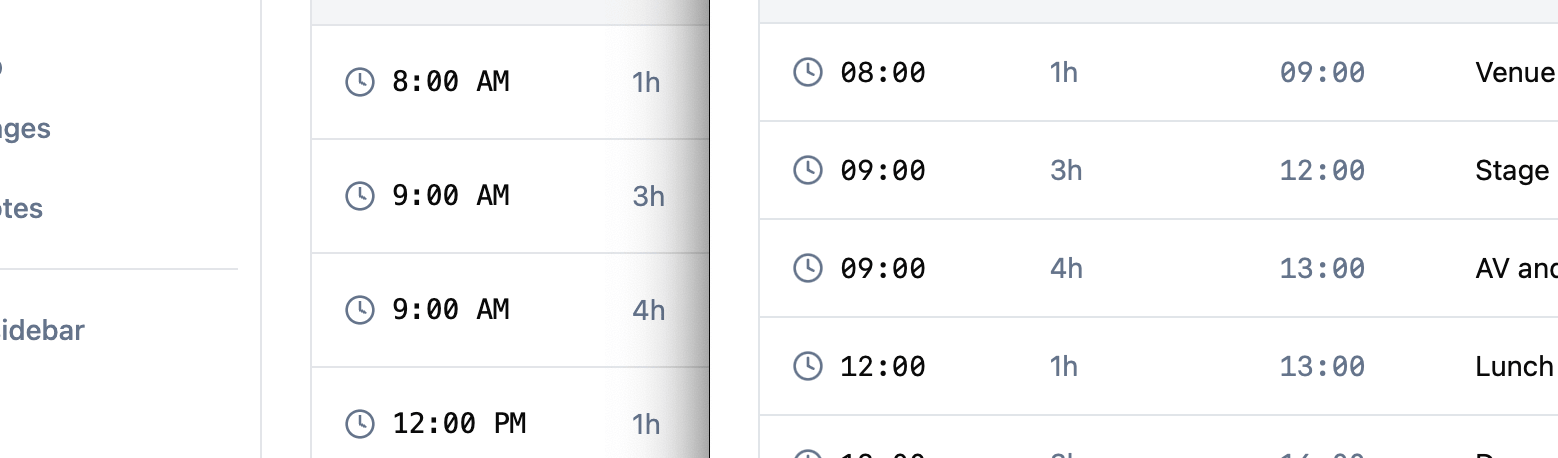
Everyone sees times in the format they read fastest, without any configuration.
Overnight items without the weird math
Late-night shows run past midnight. Load-outs stretch into the early morning. If an item starts at 11:00 PM and runs for three hours, the end time is 2:00 AM the next day, not a broken “26:00” or a silently-wrapped “2:00 AM” that looks like it happened before the start.
The schedule handles this cleanly: end times that cross midnight are tagged with a “(tomorrow)” label so the time reads correctly and the boundary is obvious.

Know where you are in the day
When you are in the middle of a production, you are not reading the schedule from the top. You are trying to figure out what is happening right now and what comes next. A live current-time indicator runs across the current day’s schedule, anchored to the real time in the project timezone, so a glance tells you where you are in the flow without counting rows.
Export as PDF for offline use
Not everyone wants to stare at a browser tab during a show. Crew on a floor, a stage manager in the wings, a driver in a van — they often want paper. Any project schedule can be exported as a printable PDF.
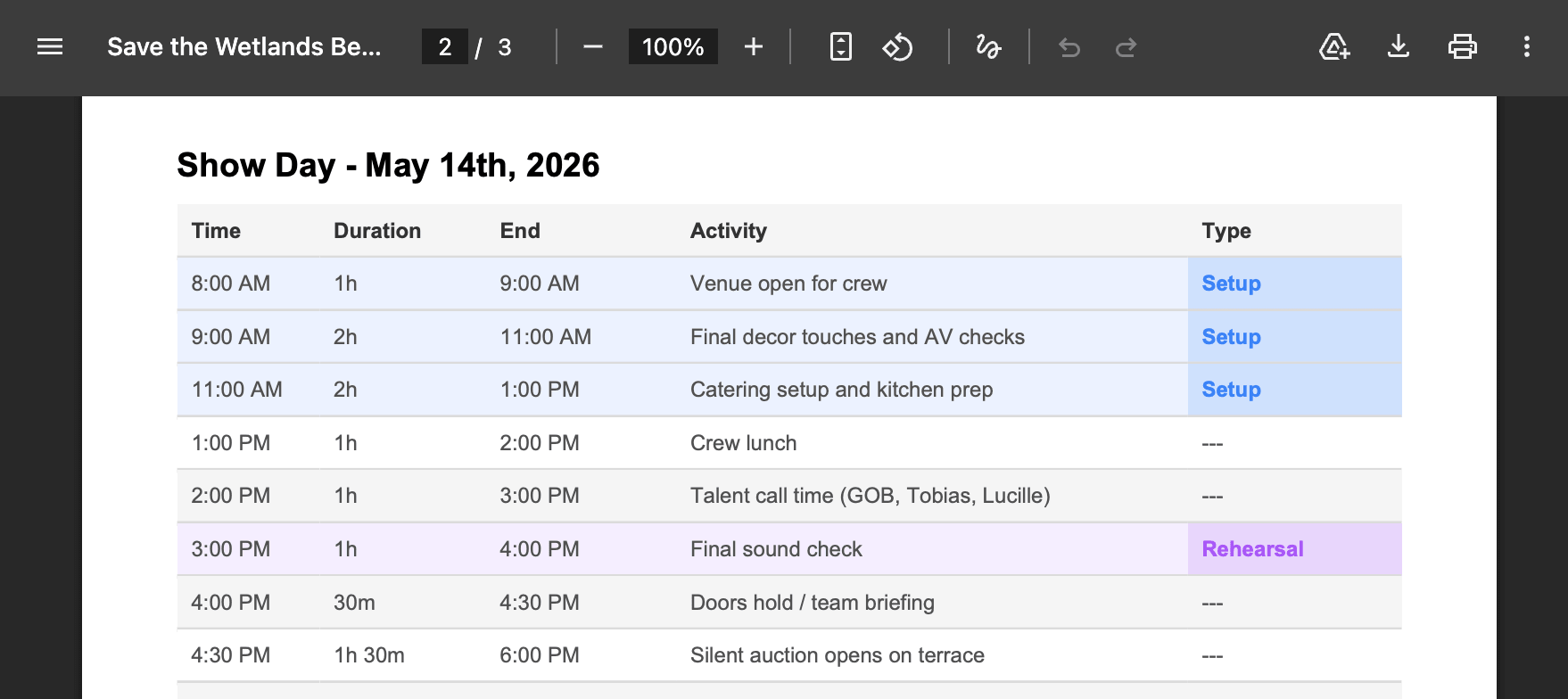
The PDF preserves the full day’s structure: timed items, types, breakout tracks, and the names of linked resources. It is useful for handing out call sheets on set, sharing offline with crew who do not have the app open, or keeping a paper backup when venue wifi is unreliable.
How it fits with the rest of ProductionPlanner.io
The schedule does not live in isolation. It connects to the other parts of a project:
- Team members assigned to schedule items come from your project’s team.
- Resources linked to items come from your project’s resources.
- Timezones and dates are inherited from the project itself.
- Every edit — adding an item, changing a time, reassigning a team member — is recorded in the project’s activity log, so you always have a trail of what changed and when.
Try it with your next production
The schedule is available in every project on any plan. Open a project, pick a date, and start adding items. Drag times around, assign crew, link the right files, and print a PDF when the day is locked.
If you are planning a run of show and want a timeline that your whole team can actually rely on, create your account and try it with your next production.
Read the full schedule documentation for a detailed walkthrough of every feature covered here.
Stay in the loop
Get product updates when new features ship. No spam, unsubscribe anytime.