June 10, 2026
How team and permissions work in ProductionPlanner.io
Invite team members by email or from your organization, group them into departments, and control who can see and edit what with per-member read or write access. A closer look at the team feature.
By John Barker
A production’s team is not just a contact list. It is a structure: who is in which department, who reports to whom, who can sign off on what, who needs to see the budget and who absolutely should not. The list of names is the easy part. The structure is where productions either run smoothly or fall over.
The team and permissions system in ProductionPlanner.io is designed to capture the structure as well as the names, so every project has a clear answer to “who is on this and what can they do.”
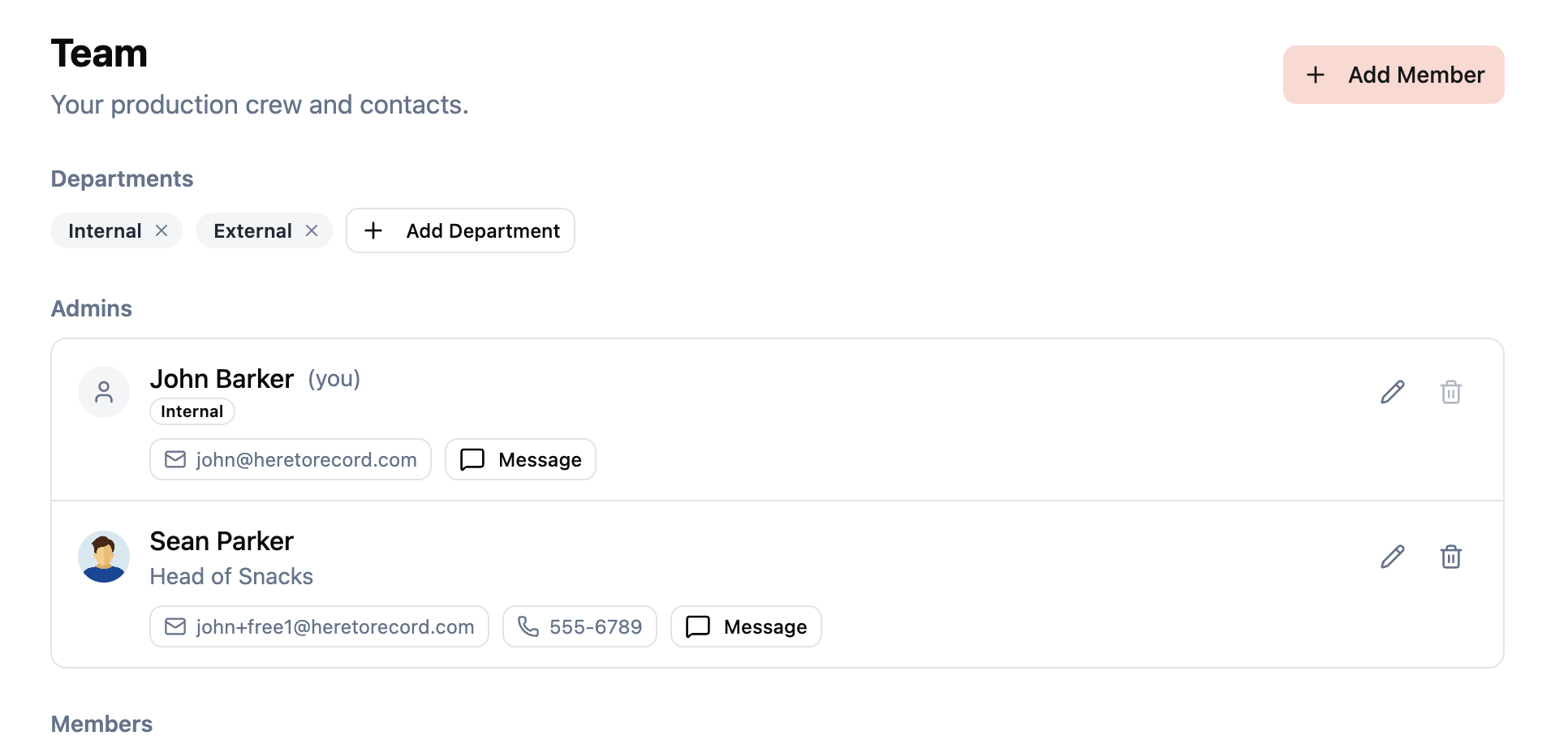
Two ways to add someone
Adding a person to a project can happen two ways.
From your organization is the fast path. If the person is already a member of your organization, you can add them with one click. They are marked accepted immediately and can open the project right away.
By email invitation is the path for people who are not yet in ProductionPlanner.io, like a one-off freelance crew member or a client representative. You enter their name, email, role (their job title on this production), and optionally a phone number. They receive an email with a link to join, and their status sits at “pending” until they accept.
Every team member’s record carries name, role, email, phone, optional profile image, and their department assignments. That is enough to use the page as a working crew contact sheet without having to maintain one separately.
Read or write, per person
Each team member has one of two permission levels:
- Read lets them view the project but not change anything. Stage managers in observation, clients who want visibility, sponsors checking on their event.
- Write lets them view and edit everything, including the schedule, resources, tasks, budget, and team. This is the default for new invitations.
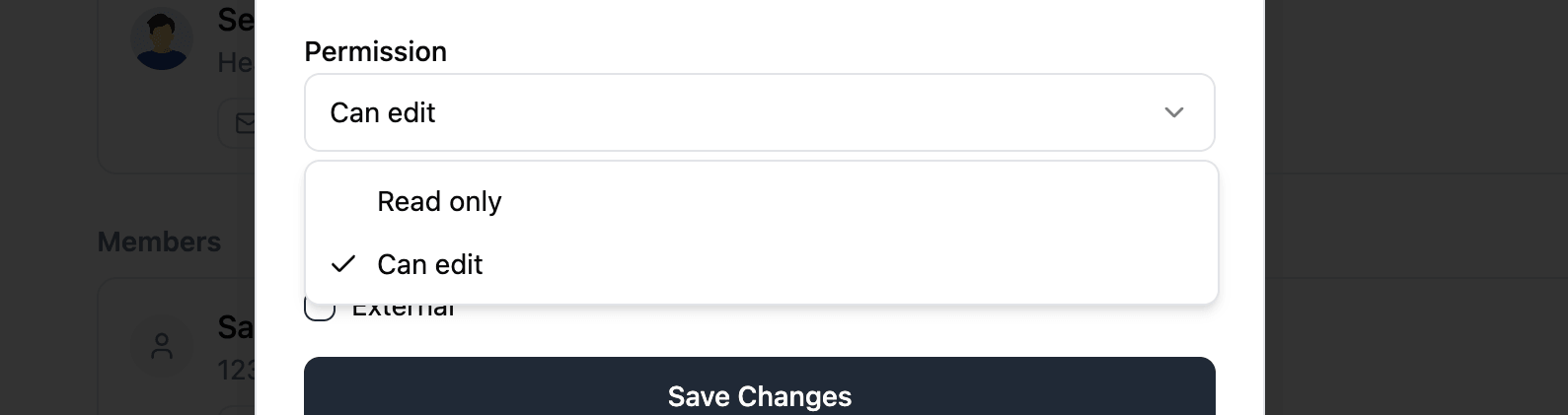
The project creator always has write permission and cannot be downgraded, so you never accidentally lock yourself out.
One detail that surfaces in the budget docs and is worth repeating here: budget data is only visible to write members. Read-only team members never see budget information, no matter what else they have access to. That keeps the sensitive financial picture limited to the people running point on it, without you having to manage two separate access lists.
Departments to mirror how the crew actually works
A flat list of fifty team members is hard to read. The same fifty grouped by department is a working org chart.
You can create as many departments as the production needs. Lighting, Audio, Catering, Stage Management, Production, Talent, Vendors. Each team member can belong to multiple departments, which matters because real crews are not always cleanly siloed. The video op who also handles backstage comms belongs in two places.
Departments are project-specific. A touring show might think in instruments and crew positions. A film shoot thinks in load-in, travel, and catering. A conference thinks in programming, hospitality, and AV. Each project gets its own structure without forcing it into a global template.
Departments are organizational. They do not affect permissions, so you can use them as freely as you like without worrying about accidentally locking someone out of something.
Invitation status, kept honest
Every invitation has a status:
- Pending if the email has been sent but not yet accepted.
- Accepted once the member has joined.
- Rejected if they declined.
The team list shows the status next to each name, so you always know who is actually on the project and who is still chasing the link in their inbox. Organization members added directly to a project skip the email step and arrive as accepted immediately.
Profile data flows through
When a team member is invited from your organization, their profile image and contact details flow in from their organization profile. Update your name or photo in one place and it updates across every project you are on. Useful when someone changes their phone number partway through a production and you do not have to chase it across five different projects.
How it fits with the rest of ProductionPlanner.io
The team is the spine that other features lean on:
- The schedule lets you assign team members to specific items, surfacing who is on what at a glance.
- Tasks can be locked to specific team members as the only people allowed to sign them off.
- Messages lets you DM any team member or post in the group conversation.
- Call sheets email the day’s plan to whichever subset of the team you choose.
- Every team change goes into the project’s activity log.
Add a person once, in one place, and they show up where they need to be everywhere else.
Try it with your next production
The team feature is part of every project on any plan. Open a project, head to the Team page, add your crew, group them into departments, and pick the right permission for each.
If you are running a production with a team bigger than five and your current view of “who is on this” lives in a group chat or a phone contacts list, create your account and try it on your next one.
Read the full team documentation for a detailed walkthrough.
Stay in the loop
Get product updates when new features ship. No spam, unsubscribe anytime.