July 9, 2026
What's New in v1.7: Plans, Branding, and Faster Scheduling
ProductionPlanner.io introduces paid plans, your own logo on every project page, and one-click duplication of a day's schedule.
By John Barker
Version 1.7 is a milestone release. ProductionPlanner.io now has paid plans, so the app has a sustainable future and a clear path from a free production tool to something a whole team runs on. Alongside that, this release brings your own branding to every project page and a much faster way to build repeating schedules.
Plans and pricing
Until now everything was free. With v1.7 we’re introducing plans so we can keep building and supporting the app for the long run, while keeping a genuinely useful free tier for anyone getting started.
Every organization starts on the Free plan: 2 organization members, 5 project members, 2 active projects, guest links, and 10 MB file uploads. It’s enough to plan a real production end to end, at no cost and with no credit card.
The Team plan unlocks the rest of the app: call sheets, budget tracking, custom pages, custom project branding, schedule export as PDF and CSV, API access, and much higher limits (20 organization members, 100 project members, 20 active projects, and 1 GB uploads).
We know productions don’t all bill the same way, so Team comes two ways:
- Yearly for teams running back-to-back productions, billed annually and cancellable anytime.
- A one-time 30-day pass for a single production run. Buy it once, get full access for a month, and drop back to the free plan afterwards with all your data intact. No subscription to remember to cancel.
Prices are shown and charged in your local currency where possible, and VAT is handled at checkout. Larger teams that need more members, unlimited active projects, bigger uploads, or flexible billing can talk to us about Enterprise.
Reaching a limit only ever blocks new actions. Nothing you’ve already created is touched, so downgrading or letting a pass lapse never puts your existing work at risk. See the pricing page for the full breakdown.
Your logo on every project page
Team plans include custom branding, and the most visible piece of that is your own logo. Upload it once in Organization Settings and it replaces the ProductionPlanner.io logo at the top of every project page.
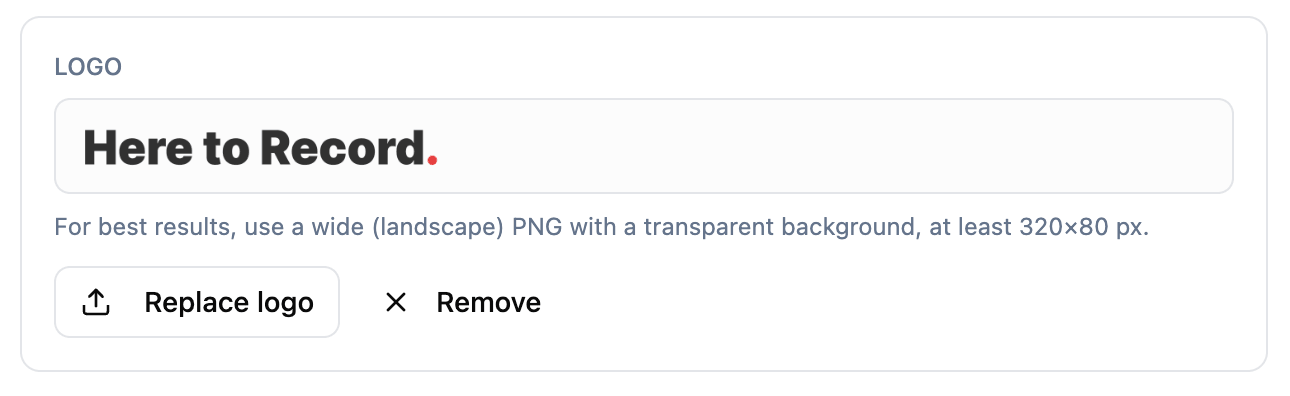
Crucially, this carries through to the read-only guest view your clients, vendors, and stakeholders see. When you share a link, they see your brand at the top of the page rather than ours, so the project looks like it belongs to you. Full details are in the Organizations docs.
Duplicate a day’s schedule
Multi-day events are full of repetition. A rehearsal day and a show day often share the same shape; a three-day conference frequently runs the same pattern each morning. Rebuilding that by hand, item by item, is exactly the kind of busywork the app should take off your plate.
Now you can copy an entire day’s schedule onto another day in one step. Open the More menu on a day’s table, hover Duplicate, and pick the day to copy from.
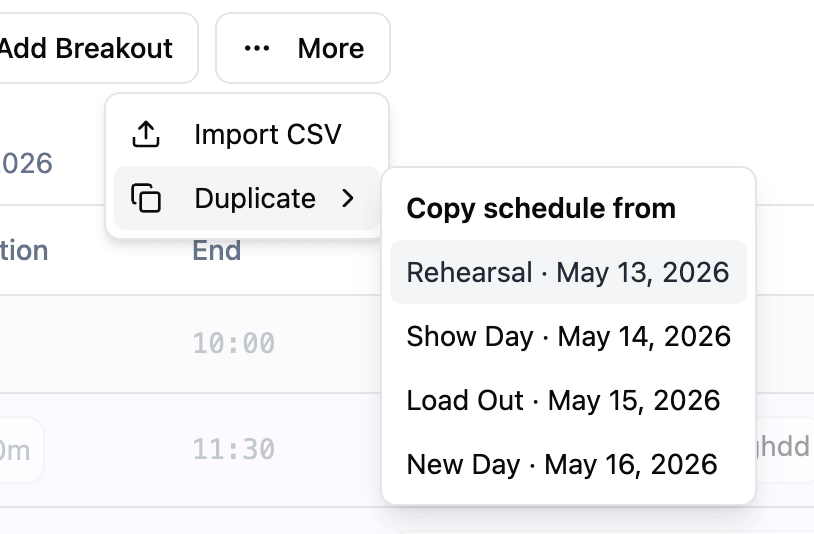
Everything comes across: times, durations, types, breakout tracks, and any linked resources and assigned team members. Copied items are added to the target day rather than replacing it, and the day re-sorts by time afterwards. If the target day already has items, you’re asked to confirm first so nothing is overwritten by accident. There’s more in the schedule docs.
A clearer view of your team
With plan limits in play, it should always be obvious how much room you have. The Team page now shows your project member count against your plan’s limit, so you can see at a glance how many more people you can add before it’s time to upgrade.
Get started
Plans are live now. Open your organization’s new Billing page to see your current plan, upgrade, or manage your subscription, and head to the pricing page for the full comparison.
Stay in the loop
Get product updates when new features ship. No spam, unsubscribe anytime.