June 17, 2026
How locations work in ProductionPlanner.io
Add physical venues with embedded maps and digital meeting links to your project, so every team member knows exactly where to be and how to get there. A closer look at the locations feature.
By John Barker
“Where is load-in again?” should never be a question asked the morning of a show, but it always is. Addresses get pasted into chats. Map links go stale. The venue’s “Building C, around the back” instruction lives in one person’s email. Half the crew shows up at the loading dock and half of them end up at the front desk.
Locations in ProductionPlanner.io give your project a single shared place to record every venue and meeting link, with embedded maps and clickable links, so “where” stops being a thing that has to be re-answered.
Two location types
Productions take place in two kinds of spaces, and both deserve a first-class entry:
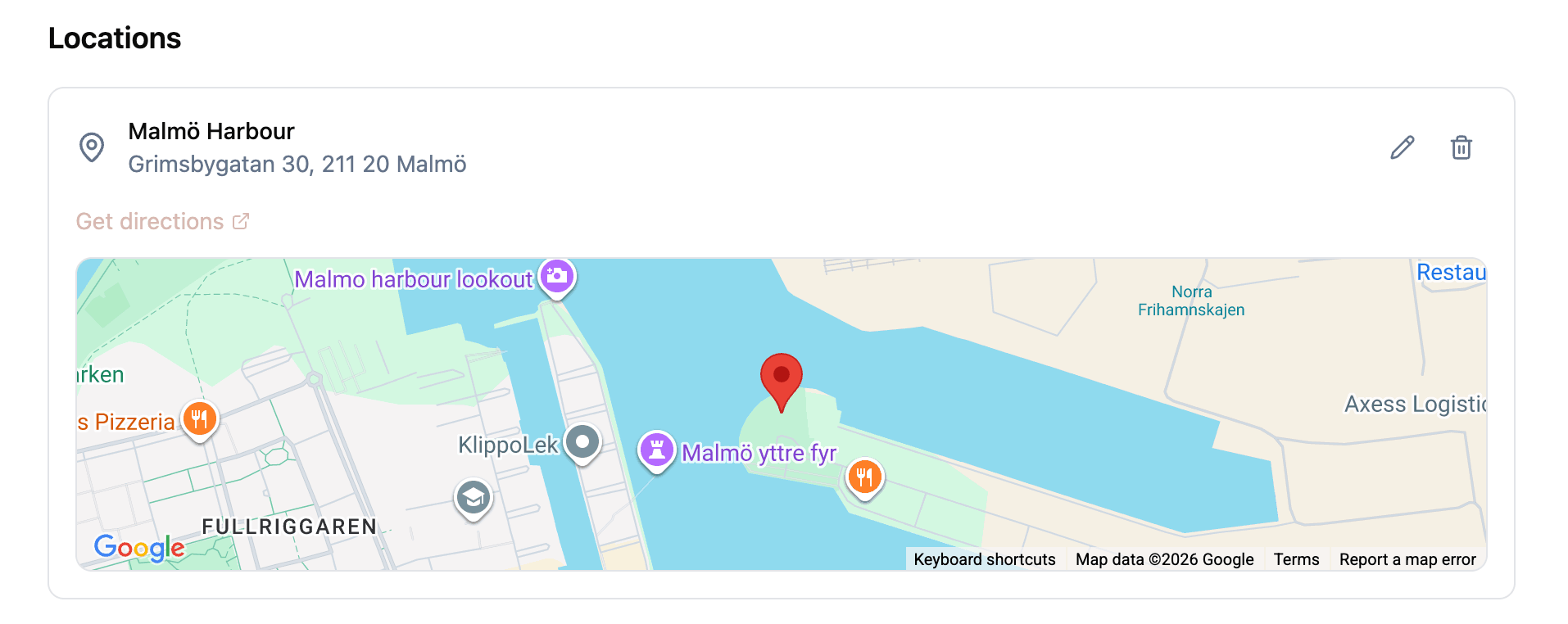
- Physical locations are venues, buildings, or outdoor spaces. The address goes in the details field. You can add a map or a venue photo so people see what they are looking for before they arrive.
- Digital locations are virtual meeting links. The URL goes in the details field. They render as clickable links so people can join with one tap.
Mix and match. A hybrid event has a venue and a Zoom link. A remote planning session has only digital. A pure on-site shoot has only physical. The same project can hold any combination.
Embedded maps for physical venues
For any physical location you can provide a latitude and longitude, and a Google Maps view renders right inside the project with a marker on the spot. A “Get Directions” link opens the location in Google Maps for navigation, so a crew member tapping it from their phone goes straight into turn-by-turn.
This matters most for venues with awkward addresses. Industrial parks, warehouse districts, festivals on a field with no proper street number. The visual map removes the ambiguity that a typed address sometimes leaves in.
Photos when a map is not enough
If a map is not the right visual, you can upload an image of the venue instead. Useful for places where the address is fine but the entrance is the question. A loading dock around the back of the building. A specific gate at a festival site. A green room down an unmarked corridor.
The image displays as a background on the location card, so the team sees it the moment they open the page.
Digital locations as one-tap links
A digital location is the meeting URL plus a name. It renders as a clickable card with an icon, so when the call moves from “10am production sync” to “click to join,” the link is one tap away on the project, not buried in someone’s calendar invite.

No more “what’s the link again?” in the group chat ninety seconds before the call.
Edit anything at any time
Productions evolve. The venue you booked moves you to a different room. The meeting platform changes. A second location gets added halfway through prep. Every location is independent and editable, so you can switch a physical location’s image to a map without recreating it, change a Zoom link to a Google Meet link without losing the entry, or add a new entry as soon as you know about it.
How it fits with the rest of the project
Locations are not an island. They flow into the parts of the project where “where” matters most:
- The day’s call sheet PDF includes every location on the project, with type badges and map links where available, so the team gets the addresses in their inbox.
- Every change to a location is recorded in the project’s activity log.
- Locations appear on the project’s details page, so they are visible from the project’s home view.
Try it with your next production
The locations feature is part of every project on any plan. Open a project, head to the Details page, and start adding venues and meeting links. Add coordinates for a map, or a photo if the entrance is the part that matters.
If you are coordinating a production where the where keeps getting re-asked, create your account and try it on your next one.
Read the full locations documentation for a detailed walkthrough.
Stay in the loop
Get product updates when new features ship. No spam, unsubscribe anytime.