Budget tracking
The budget tracker helps you plan and monitor production costs. Set an overall budget cap, add line items with estimated and actual costs, and categorize spending across standard production categories. A visual progress indicator shows how actual spending compares to estimates at a glance.
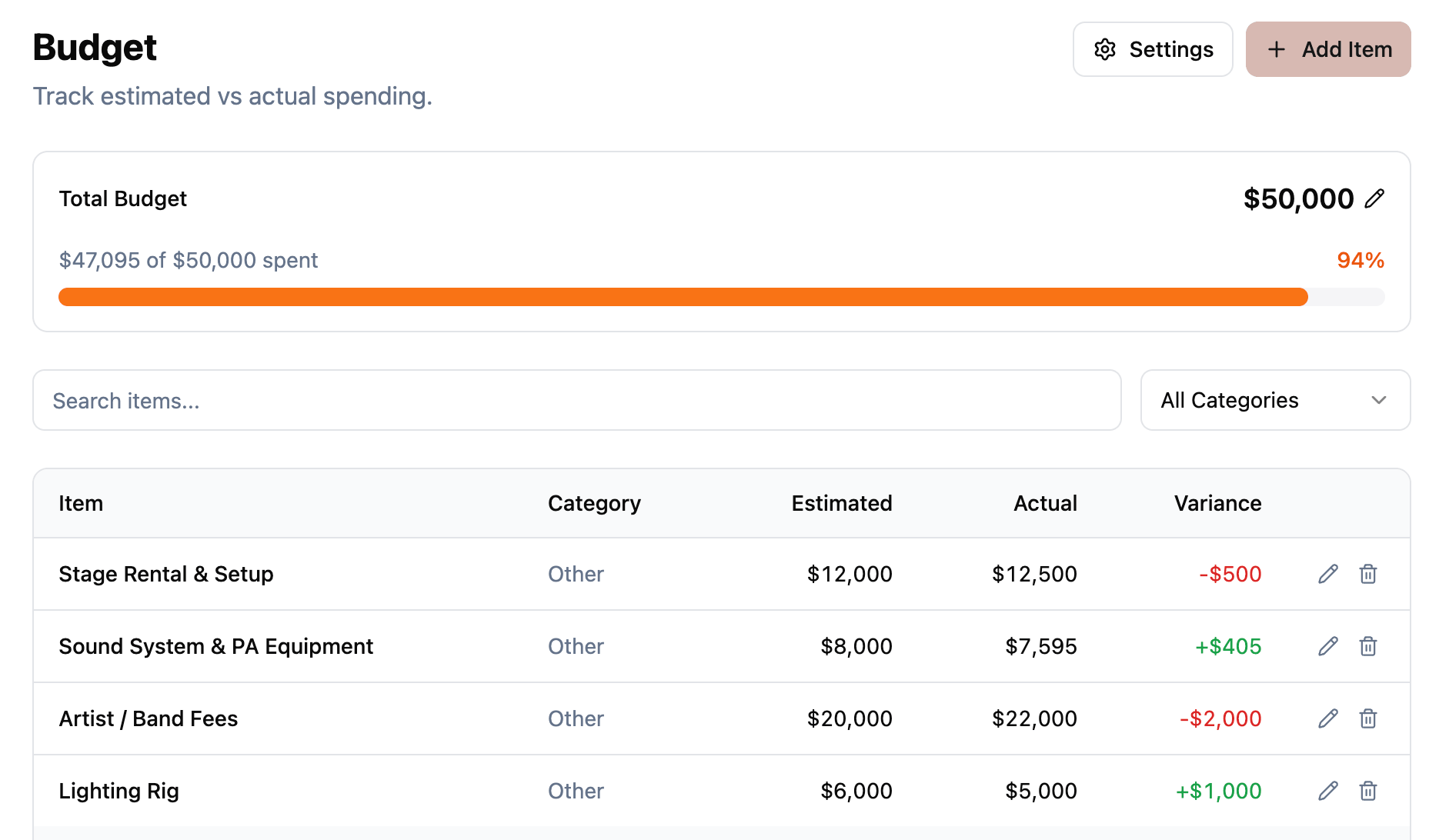
Budget items
Each budget item includes:
- Name: what the cost is for (e.g., “Venue deposit”, “Catering for 200 guests”).
- Description: additional details or notes about the cost.
- Category: which spending category this belongs to (see below).
- Estimated cost: what you expect to spend.
- Actual cost: what you actually spent. This can be updated as invoices come in.
Categories
Budget items are organized into 10 standard categories:
- Venue: rental fees, facility charges, and venue-related costs.
- Catering: food, beverages, service staff, and related expenses.
- Equipment: rental or purchase of production equipment (lighting, sound, video, etc.).
- Talent: performer fees, speaker fees, and talent-related costs.
- Travel: transportation, accommodation, and travel expenses for crew or talent.
- Marketing: promotional materials, advertising, and branding costs.
- Staffing: crew wages, contractor fees, and labor costs.
- Decor: decoration, design elements, signage, and scenic materials.
- Permits: licenses, permits, insurance, and regulatory fees.
- Other: anything that does not fit the above categories.
You can filter the budget view by category to focus on specific areas of spending.
Project budget cap
Set a total budget cap on the project level. This represents your overall spending limit. The budget view shows a progress indicator comparing total actual costs against the cap so you can see at a glance whether you are on track.
You can also set the currency for the project (e.g., USD, EUR, GBP, SEK). The currency applies to all budget items in the project.

Importing from CSV
If your budget already lives in a spreadsheet, you can bring it straight in via the Import CSV button on the budget page. The import is a multi-step flow:
- Paste your CSV or TSV data with a header row in the first row.
- Map each column to a budget field: Name, Description, Category, Estimated Cost, or Actual Cost. Mappings are auto-guessed from the header names.
- Preview the resolved rows, then import.
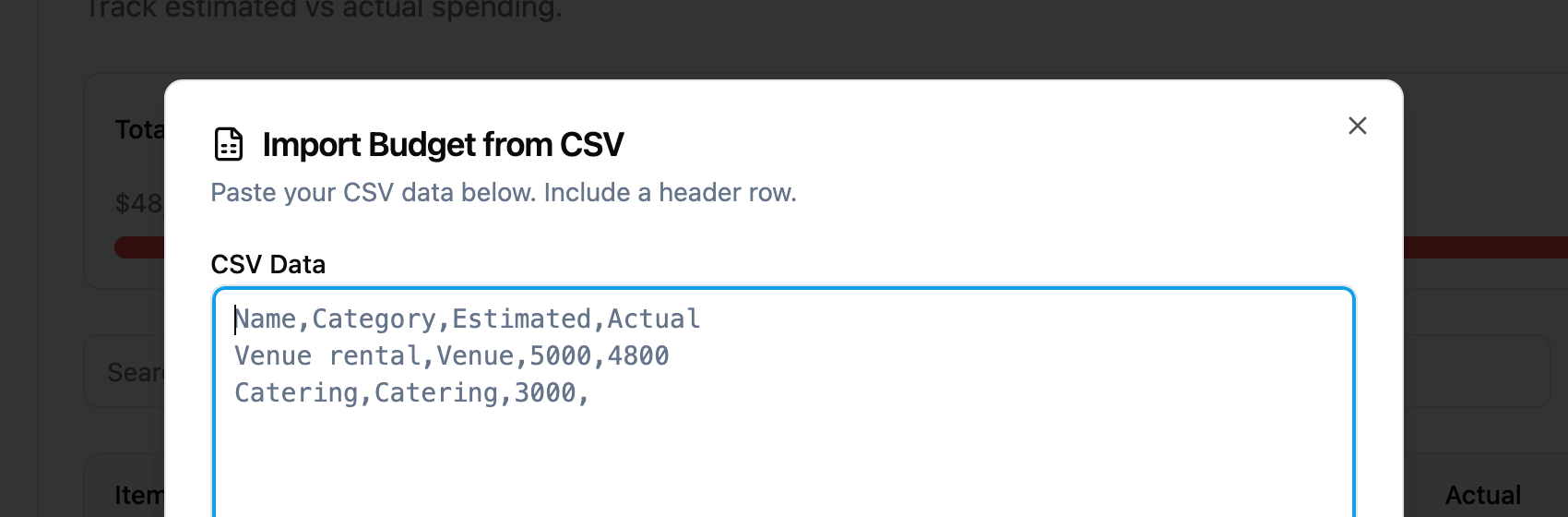
$5,000 are parsed automatically.Currency strings like $1,200 are parsed to numbers automatically. Categories are matched against the standard list above and fall back to Other if a value does not resolve. Rows without a name are skipped.
Imported items are appended to the existing budget, so the import is additive: you can run it multiple times, and your existing items are not touched.
Access control
Budget data is only visible to team members with write permission. Read-only members cannot see budget information. This keeps sensitive financial data limited to the people who need it.
Related features