Call sheets
A call sheet is the single page that tells your team where to be, when to be there, and what they need to know for the day. ProductionPlanner.io generates one from the data already in your project — the schedule, the locations, and the team roster — and sends it to whoever you choose as a branded email with a printable PDF attachment.
Call sheets live on a dedicated Call Sheets page in the admin section of each project. Anyone with write permission on the project can send one.
Sending a call sheet
The Call Sheets page lists every date in your project. Upcoming dates are shown first; past dates are tucked behind a collapsible toggle so the page stays focused on what is next.
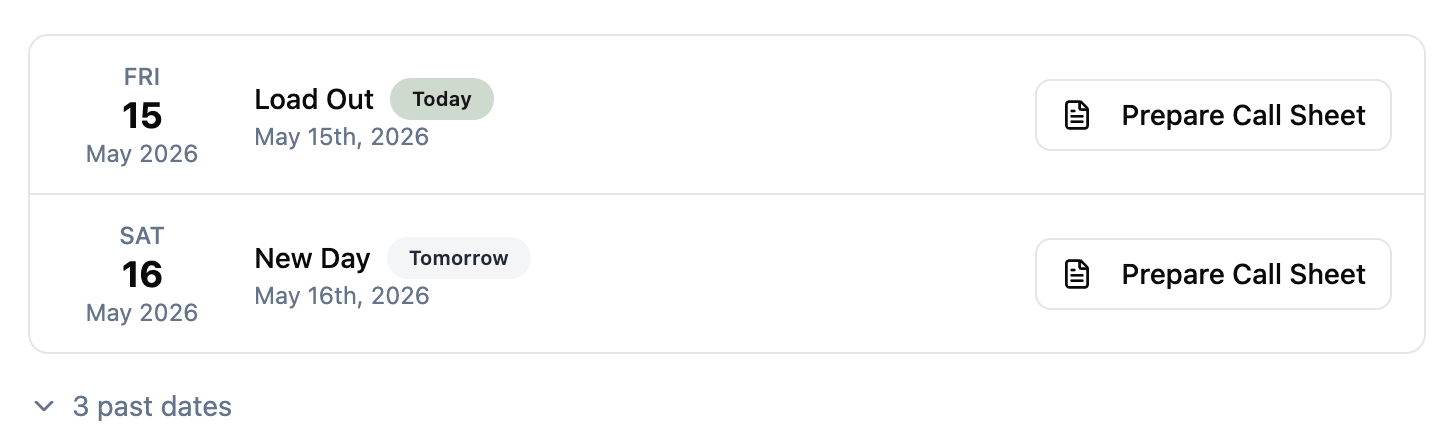
Click Prepare Call Sheet on any date to open the Send Call Sheet dialog. The dialog is split in two: on the left you set the crew call time, add any additional notes, and pick the recipients; on the right a live PDF preview updates as you type, so you see exactly what each recipient will receive.
The preview includes:
- The day’s schedule as a table — start time, duration, end, activity, type.
- Every location attached to the project, with type badges and map links where available.
- The full team roster with name, role, email, and phone.
- Your crew call time and notes at the top.
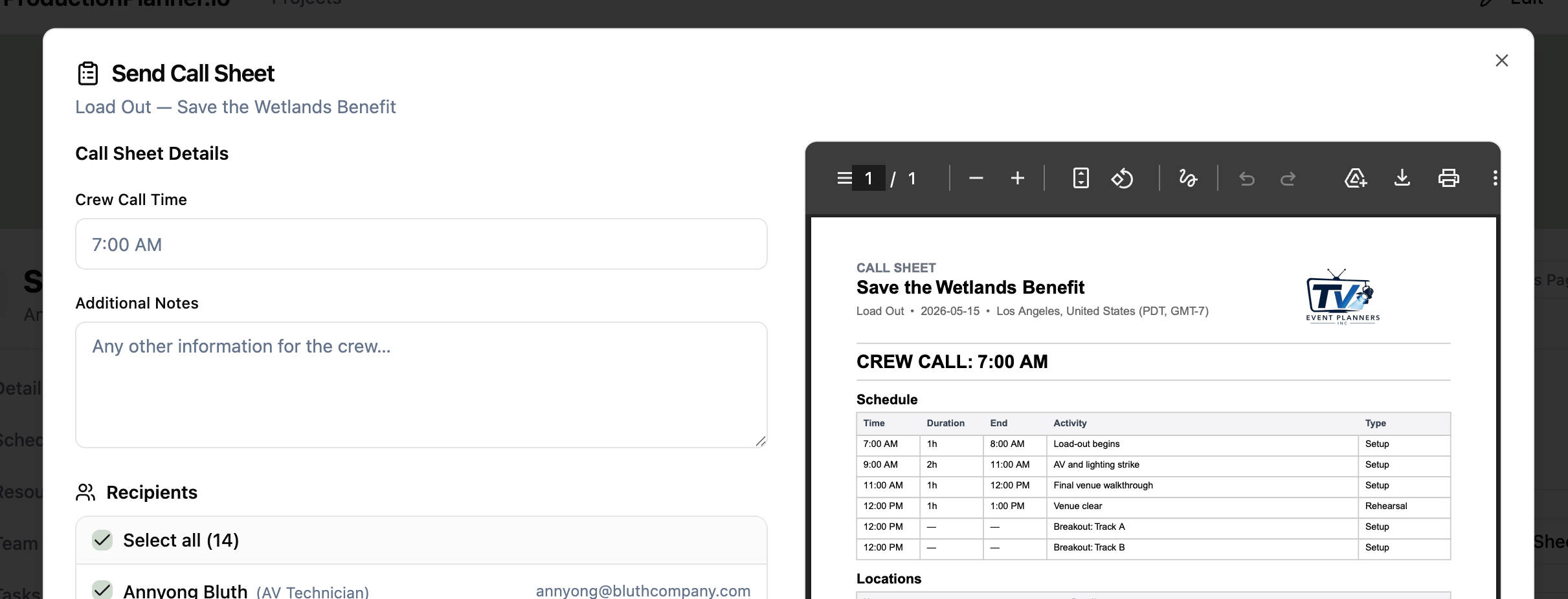
Pick the recipients before sending. By default everyone on the project team is selected (“Select all”), but you can deselect individuals or send to just one person. Click Send and each recipient gets the email and PDF attachment.
A confirmation appears once the emails are queued, and the action is recorded in the project’s activity log as “sent call sheet for [day] to N team members”.
Call sheet details
There are two fields you can fill in on each call sheet:
- Crew call time — when everyone is expected on site. Defaults to the start time of the first scheduled item for the day; override it with any time you like. Renders large and bold at the top of both the email and the PDF (e.g. “06:00”).
- Additional notes — a freeform field for anything that’s not in the schedule: dress code, weather, parking and access, nearest hospital, catering, last-minute changes. Renders below the crew call time and above the schedule.
Both fields are optional. Leave the notes blank and the section is left out of the email and PDF; leave the crew call time alone and the first scheduled item’s start time is used.
The PDF attachment
Every call sheet email includes a clean A4 PDF as an attachment. The PDF mirrors the email and is designed for printing or saving offline:
- Header with project name, day label, date, and timezone.
- Crew call time and any notes up top.
- Schedule table with time, duration, end, activity, and type columns.
- Locations section with name, details, and type.
- Team roster with name, role, email, and phone.
- Footer with the generation date.
Long schedules paginate automatically so rows are never split across pages.
If the sender has set a workspace language other than English, the PDF is generated in that language with localized dates and weekday names. Recipients see the document in whichever language was active when the sender pressed Send.
Permissions
The Call Sheets page is part of the project’s admin section, so it’s only visible to members with write permission. Read-only members don’t see it in the sidebar and can’t trigger a send.
Recipients do not need a ProductionPlanner.io account — the call sheet arrives in their inbox just like any other email.
Related features