Custom pages
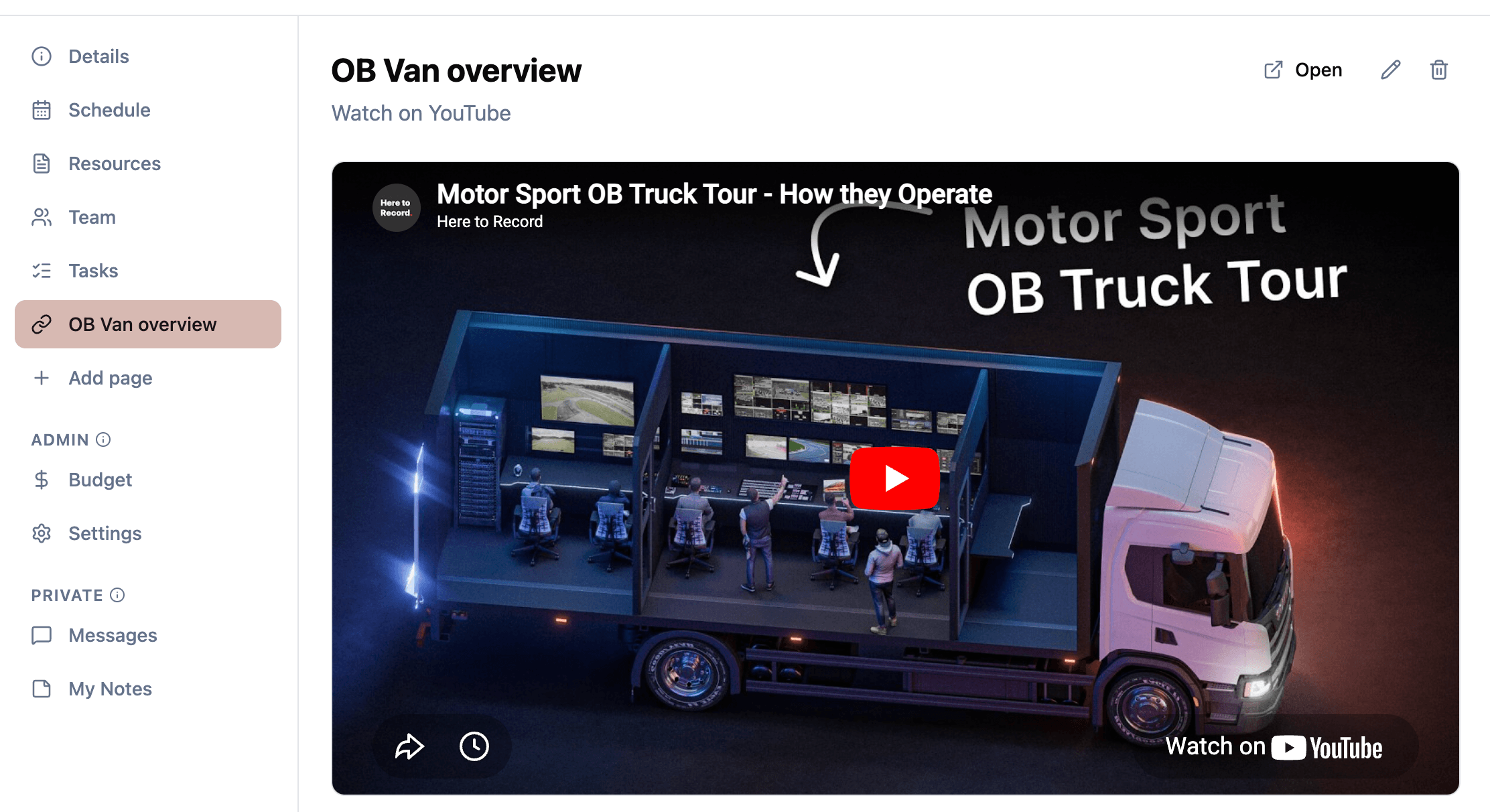
Custom pages let you embed external content directly inside your project. Bring in YouTube videos, web applications, spreadsheets, or any content that can be displayed in an iframe. Pages appear in the project sidebar alongside the built-in features, making them easy for your team to find.
Page types
There are four types of custom pages:
- Webpage embed (iframe): embeds any web page or web application by URL. Use this for Google Sheets, Miro boards, Notion pages, or any tool your team uses that supports embedding.
- YouTube: embeds a YouTube video by its video ID. The video plays directly inside the project without leaving the application.
- Resource: pins a specific file or link from the project’s Resources as its own top-level page. Use this to put an important document, image, or other resource right in the sidebar so your team can jump straight to it without digging through folders.
- Note: a rich-text page shared with the whole project team. Use it for run sheets, briefs, post-mortems, vendor instructions, or anything that does not fit into a task or message. Note pages support headings, lists, bold, italic, links, blockquotes, and other standard formatting. A floating Save button appears as soon as you start editing, and Cmd/Ctrl + S saves without leaving the keyboard. If two team members edit at the same time, the older version is preserved so nothing is silently lost.
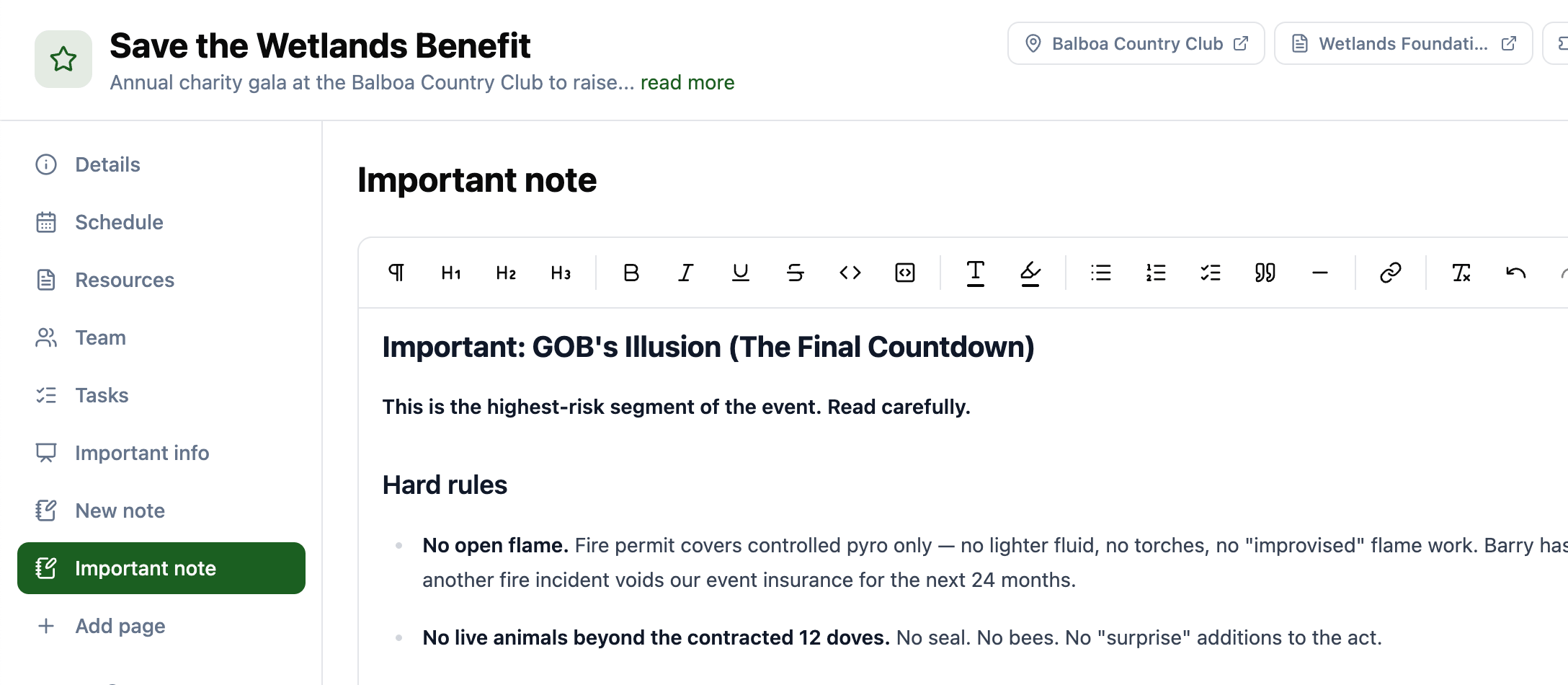
Note pages are visible to the whole project team. For private per-user notes, see Personal Notes.
Page properties
Each custom page includes:
- Title: the name shown in the sidebar and at the top of the page.
- Description: additional context about what the page contains.
- Icon: chosen from 10 options (clock, file, video, music, image, map pin, wrench, book, presentation, link) to help identify the page in the sidebar.
- External link: a button to open the embedded content in a new tab.
Common use cases
- Embed a shared Google Sheet with vendor contact information.
- Add a YouTube video of a reference performance or venue walkthrough.
- Bring in a Miro or FigJam board for collaborative planning.
- Embed a live stream dashboard or monitoring tool during the event.
- Link to an external ticketing system or registration page.
Related features