Guest links
Guest links let you share parts of your project with people who do not have an account. Clients, stakeholders, vendors, or anyone else can view the pages you choose without signing up or logging in. They get a read-only view with no ability to edit anything.
Creating a guest link
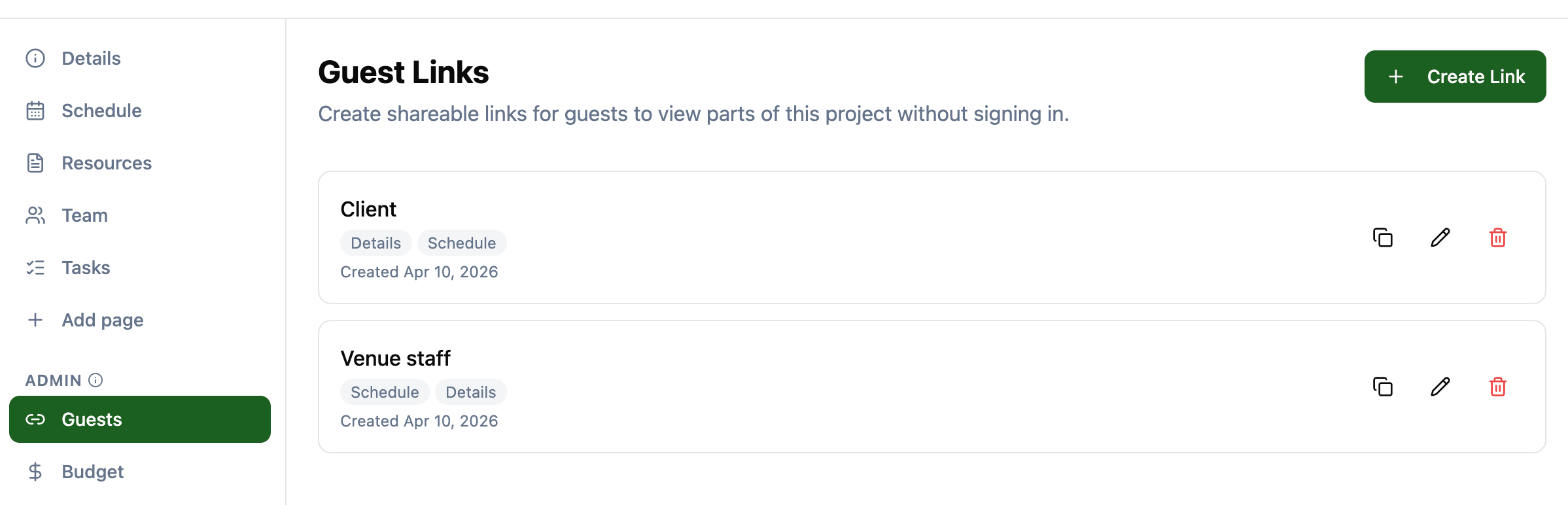
Navigate to the Guests page in the Admin section of your project sidebar. Click Create Link to open the creation dialog.
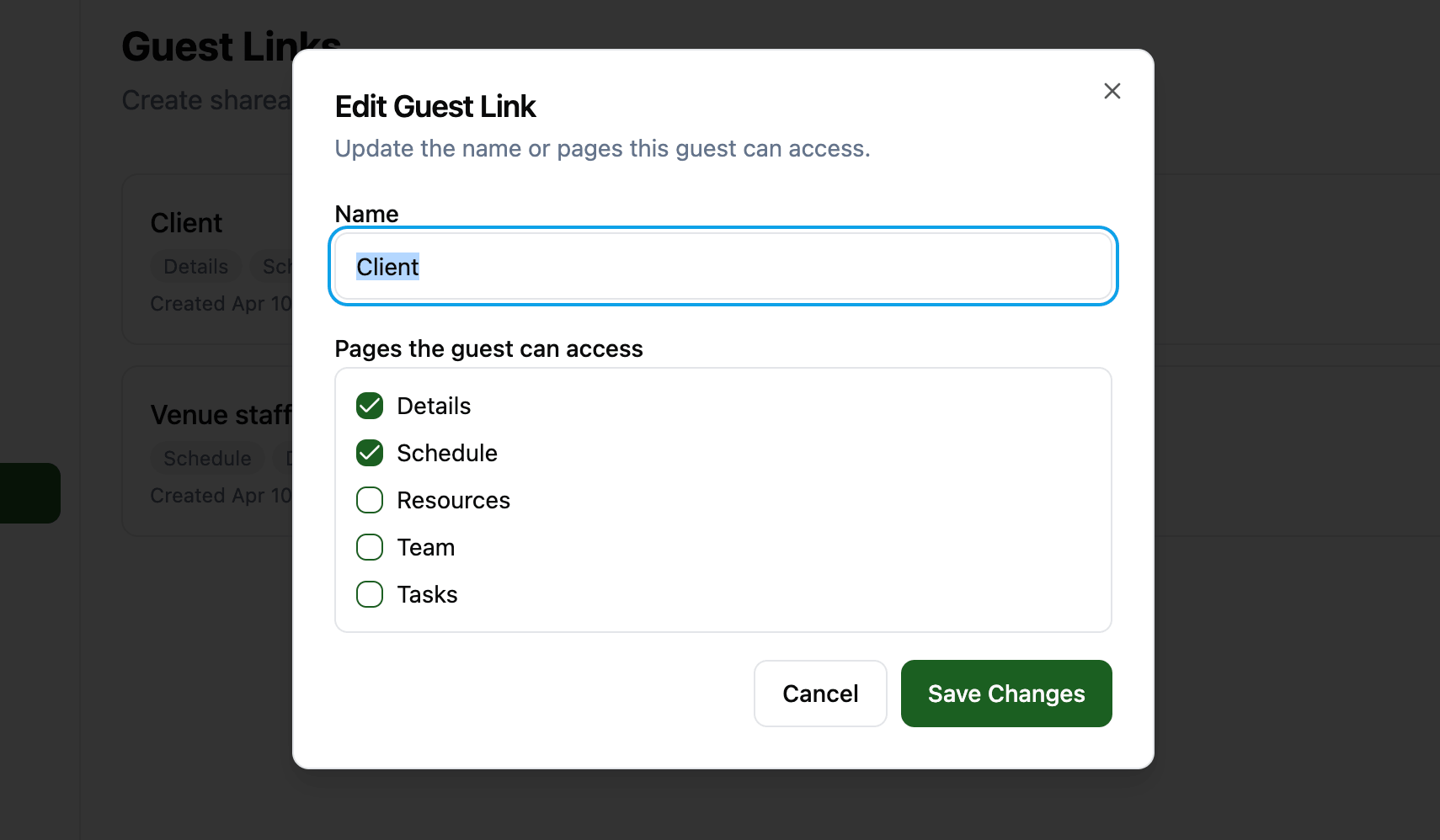
When creating a guest link you provide:
- Name to identify the link (e.g., “Client Preview”, “Vendor Access”, “Sponsor View”).
- Allowed pages selected from a checklist of available project pages.
The pages you can share include:
- Details with project info, dates, and locations.
- Schedule with the full production schedule.
- Resources with uploaded files and links.
- Team with team member names and roles.
- Tasks with the task list and progress.
- Custom pages that have been added to the project.
Admin-only pages (Budget, Settings, Guests) and private pages (Messages, My Notes) cannot be shared with guests.
Sharing the link
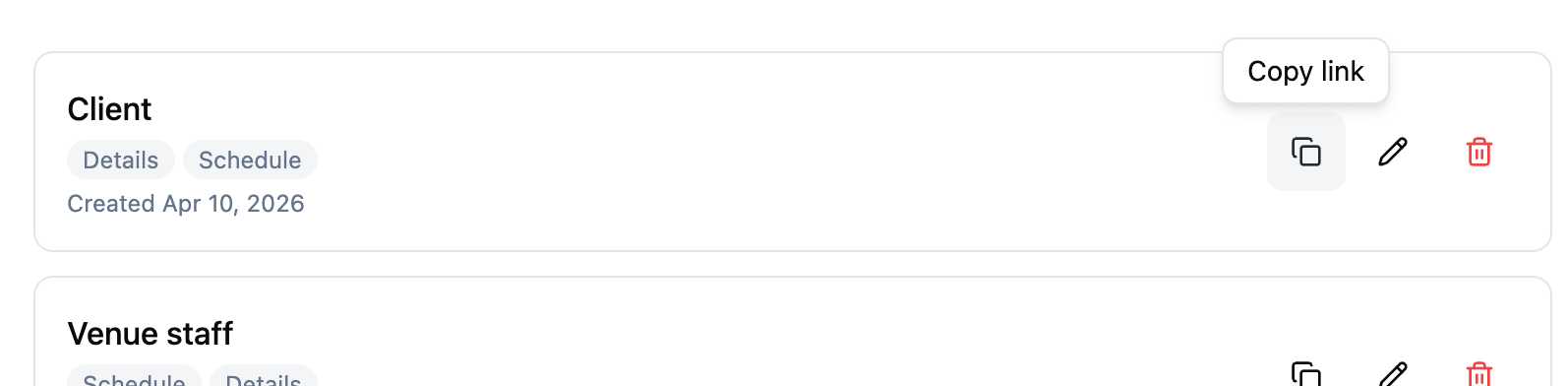
When you create a guest link, the URL is automatically copied to your clipboard. You can also copy it again at any time from the guest links list using the copy button.
The link takes guests directly to the first allowed page of your project. No login is required. They can navigate between the pages you have allowed using the project sidebar, which only shows the pages they have access to.
What guests see
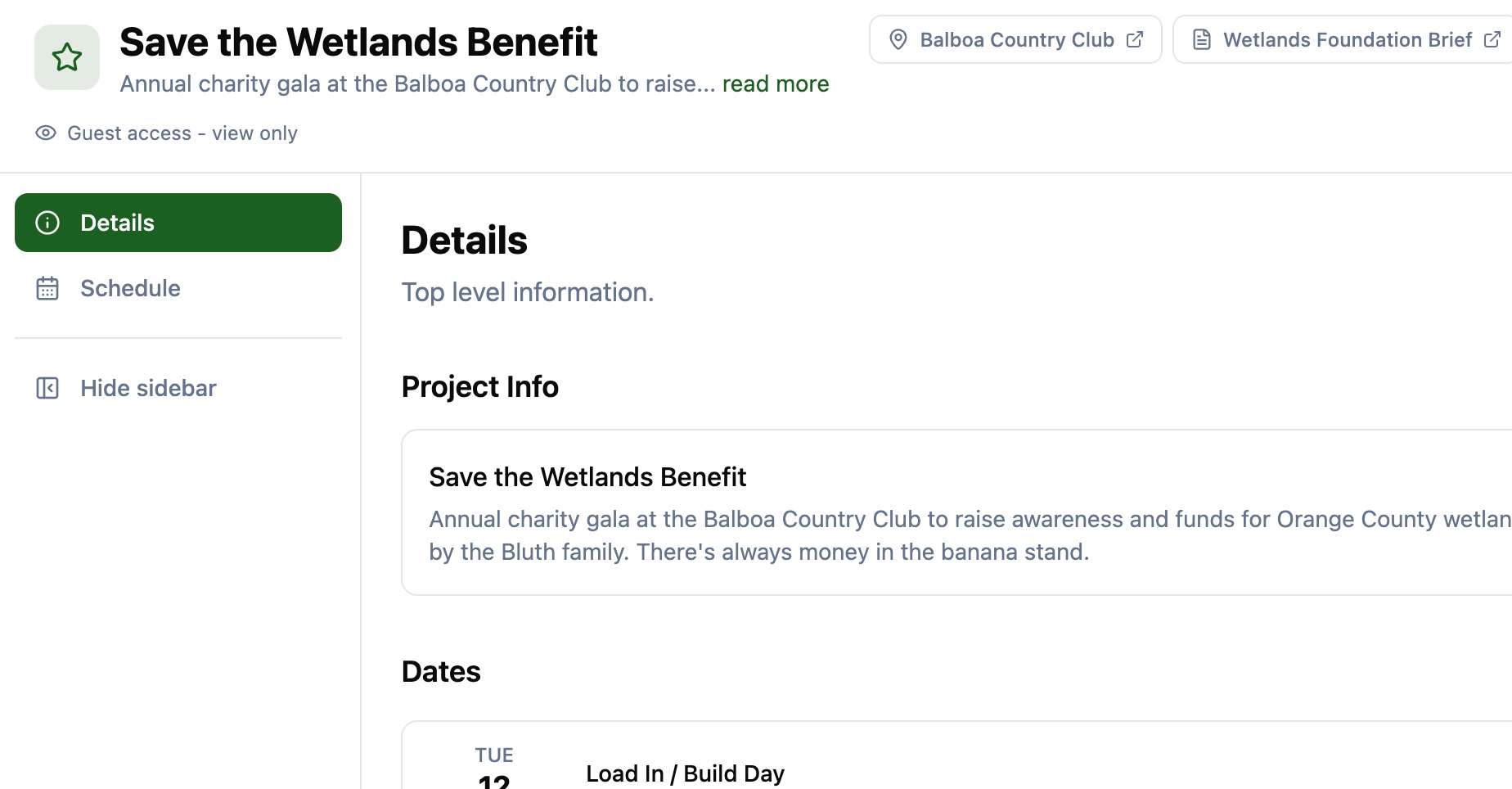
Guests see a simplified version of your project:
- The project banner, name, description, and important links are always visible.
- A “Guest access - view only” indicator is shown below the project title.
- The sidebar only contains the pages you have allowed.
- All editing controls are hidden. Guests cannot modify any project data.
- On the Team page, only names and roles are shown. Email addresses and phone numbers are hidden for privacy.
- On the Tasks page, guests can see task progress but cannot mark tasks as done.
Real-time updates
Guest views update in real time. When an editor makes changes to the project, guests see those changes automatically without needing to refresh the page.
Managing guest links
From the Guests page you can:
- Copy a link to share it again.
- Edit a link to change its name or update which pages are accessible.
- Delete a link to permanently revoke access. Anyone with the link will immediately lose access.
Updating the allowed pages on an existing link takes effect immediately. If you remove a page that a guest is currently viewing, they will be redirected to the first allowed page on their next navigation.
Security
Guest links use a unique, randomly generated token in the URL. Anyone with the link can view the allowed pages, similar to “anyone with the link” sharing in other tools. Keep the following in mind:
- Only share links with people you trust to see the selected content.
- Delete a link when access is no longer needed to revoke it immediately.
- Guest links do not expire. They remain active until you delete them.
- Guests cannot access any data beyond the pages you have selected. Budget, messages, notes, and other sensitive data are never included.
Related features